Take orders on WhatsApp
Connect your WhatsApp Business number and an AI chats with your customers, takes their orders, and places them for you. The orders land on your normal orders board, just like any other. The same connection syncs your menu to your WhatsApp catalog, so it's one link that does both jobs. There's no per-order commission.
Where to find it: open
/channelsin the app, then tap the WhatsApp card.
Before you start
- You need a WhatsApp Business account with a Facebook login to hand off to.
- Your plan has to include WhatsApp AI capture. If it doesn't, the connect screen shows "WhatsApp AI capture isn't on your plan yet. Upgrade to connect." See Plans and subscription.
- Add at least one menu item first, so the AI has products to match orders against. See Build your menu.
- The whole hand-off takes about 2 minutes.
Steps
- Open
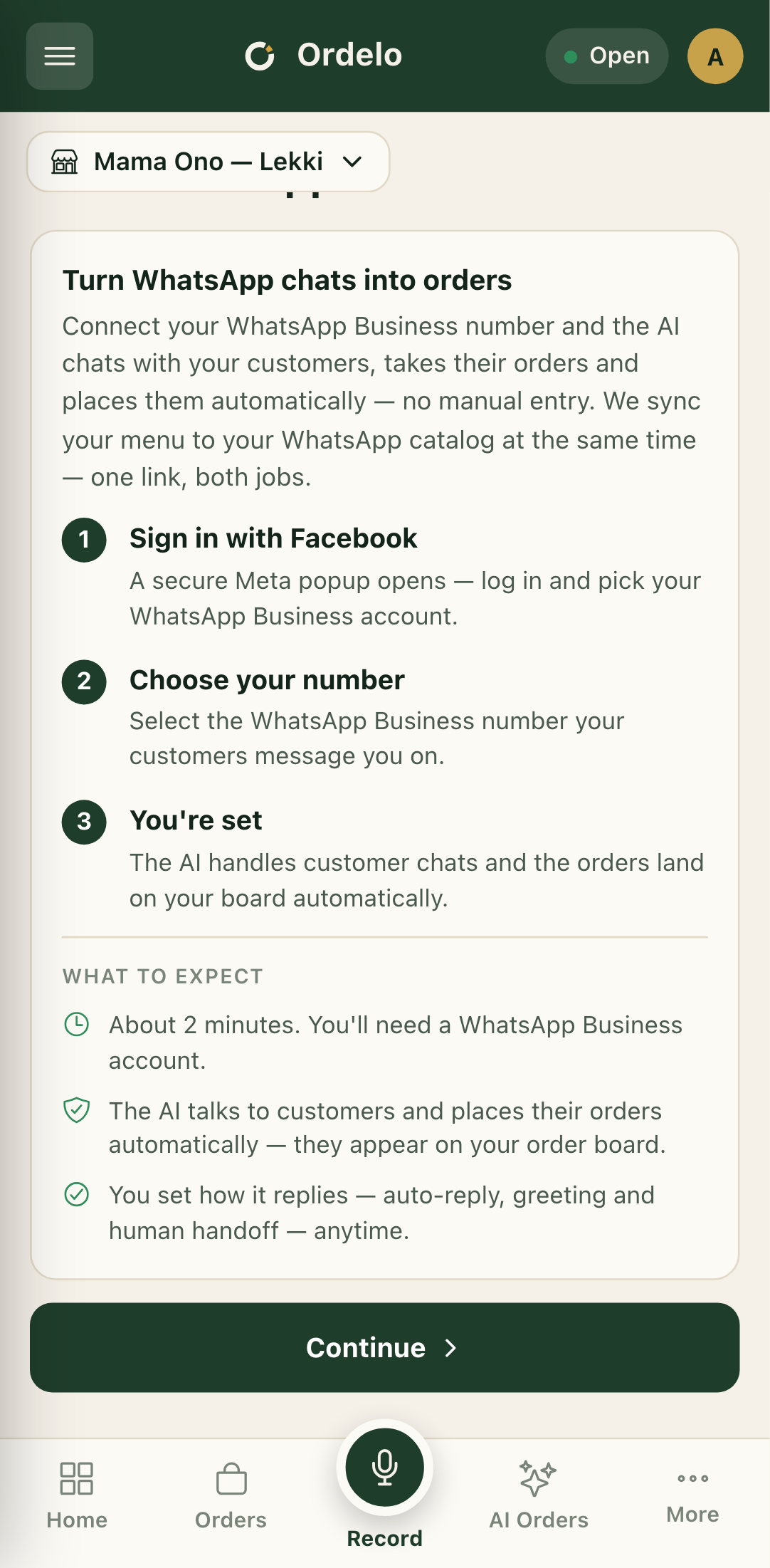
/channelsand tap the WhatsApp card. - Read the Turn WhatsApp chats into orders guide. It walks through the three parts: sign in with Facebook, choose your number, and you're set. When you're ready, tap Continue.
- On the Connect WhatsApp screen, choose how your menu and WhatsApp catalog line up:
- Push my Ordelo menu — send your current menu out to your WhatsApp catalog.
- Import my WhatsApp catalog — bring your existing WhatsApp products into Ordelo.
- Messaging only — just link WhatsApp for AI chats and don't sync any catalog.
- Tap Continue with WhatsApp. A secure Meta popup opens. Log in with Facebook and pick the WhatsApp Business account and number your customers message you on.
 WhatsApp connect
- When the popup finishes, you land on the WhatsApp connected screen with the AI controls. Set how the bot behaves (all optional):
- AI ordering — the master switch. Turn it off and the bot stops replying. Set an Away message for when it's off.
- Auto-reply — let the AI answer customers. Off sends every chat to a human. Set a Greeting message.
- Human handoff — route a chat to you when a customer types your Handoff keyword (the default is "agent"). Turn on Escalate when unsure to hand off automatically when the AI isn't confident.
- Follow opening hours — only take orders while your store is open, and send a Closed message outside those hours.
- Capture from WhatsApp — turn chat order capture on or off for this store.
- Tap Save & finish to keep your settings, or Use defaults to skip. You land on a confirmation and the AI starts handling your chats.
Tips
- "Follow opening hours" uses your Store hours. The AI has no separate schedule. Set your hours on the Store page or the bot can't tell when you're closed. If you set a closed message but no hours, nothing triggers it. See Opening hours.
- You can change the AI controls anytime. Nothing here is one-and-done. Come back and adjust the greeting, handoff, or away message whenever.
- WhatsApp orders are placed automatically. Unlike photo and voice capture, the WhatsApp bot doesn't need you to review a draft first. Its orders go straight to your board.
- On the app (not the browser), the sign-in opens your system browser. That's expected. Finish in the browser and you'll come back to the connected screen.