Payouts and settlements
A payout is money settling from your sales into your bank account. This screen shows what you've been paid, what's on the way, and exactly which orders made up each transfer.
Where to find it: open Payouts from the sidebar, or go to
/payouts. The screen covers the last 90 days.
Before you start
- Add your settlement bank account first. It's on Store → Account, under Settlement account. Payouts have nowhere to go until that's set and verified. See Set up your first store.
- Payouts are automatic. You don't request or withdraw them here. When a settlement is due, it's transferred to your bank on its own.
Read the screen
At the top are three summary cards:
- Next payout — the amount of your soonest transfer and when to expect it, such as "Arrives Mon, Jul 14". If nothing is scheduled, it shows "No scheduled payout."
- Paid out (90 days) — the total of your successful transfers over the last 90 days.
- Linked accounts — how many different bank accounts you've been paid to.
Below the cards, filter chips let you narrow the list: All, Paid, Scheduled, Processing, and Failed.
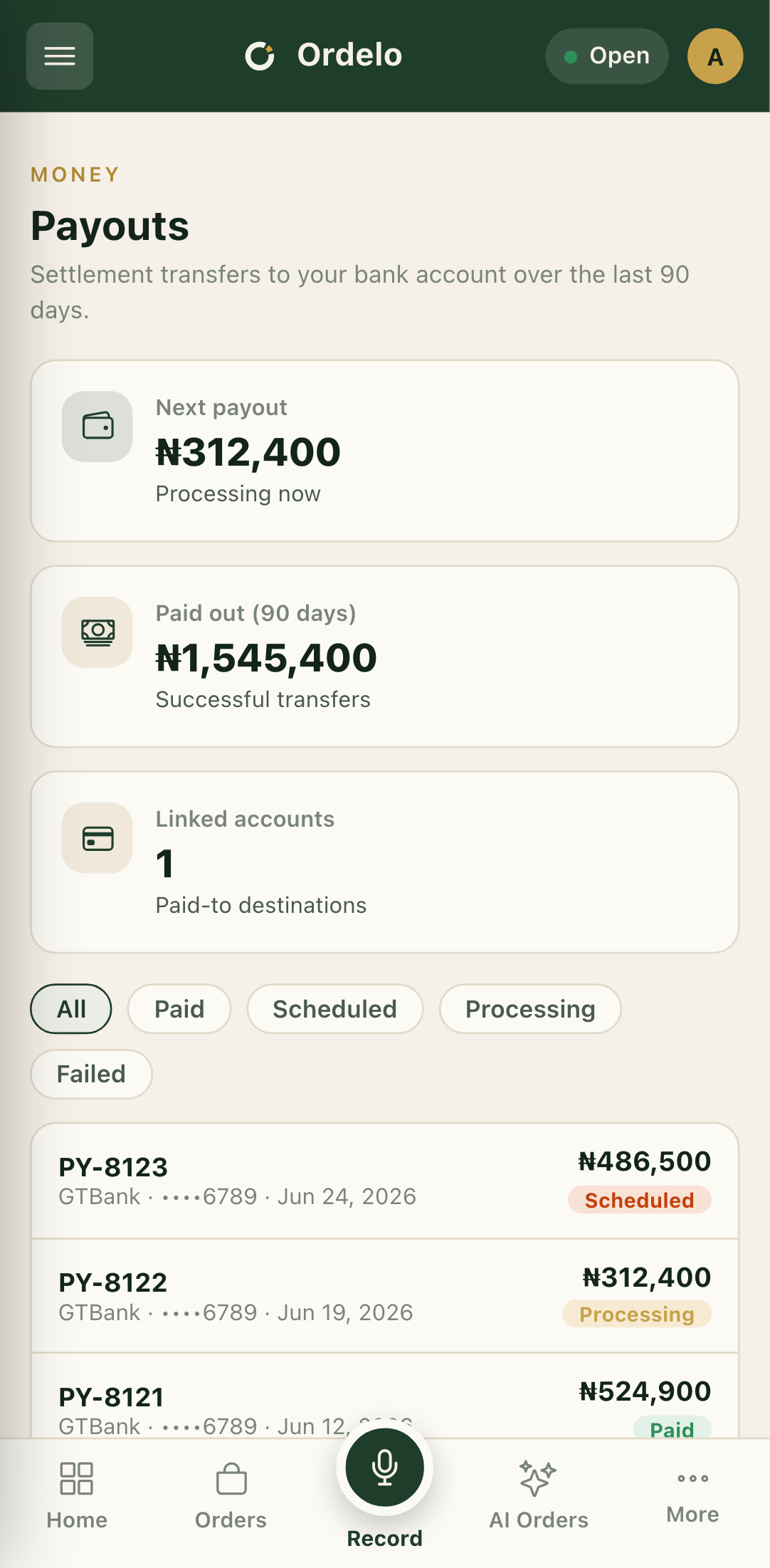 The payouts screen
Each row in the list is one payout. It shows the reference (like "PY-8123"), the bank and last four digits of the account it went to, the date, the amount, and a status badge.
What the statuses mean
- Paid — the transfer landed in your account.
- Scheduled — lined up, not sent yet.
- Processing — on its way to your bank.
- Failed — the transfer didn't go through. Check that your settlement account details are correct.
See what made up a payout
- Tap any payout in the list to open its breakdown.
- At the top you'll see the Gross amount, the Fees taken out, and your Net payout (what actually reached your bank).
- Under that, the destination line confirms the account name and bank the money went to.
- Scroll the transaction list to see every order and invoice that funded this payout. Each item is tagged POS order or Invoice with its reference and amount.
- If an order was split (for example, a platform fee or a commission), tap to see the split lines, each showing who received what and why.
- Use the Search by reference box to find a specific order inside a large payout.
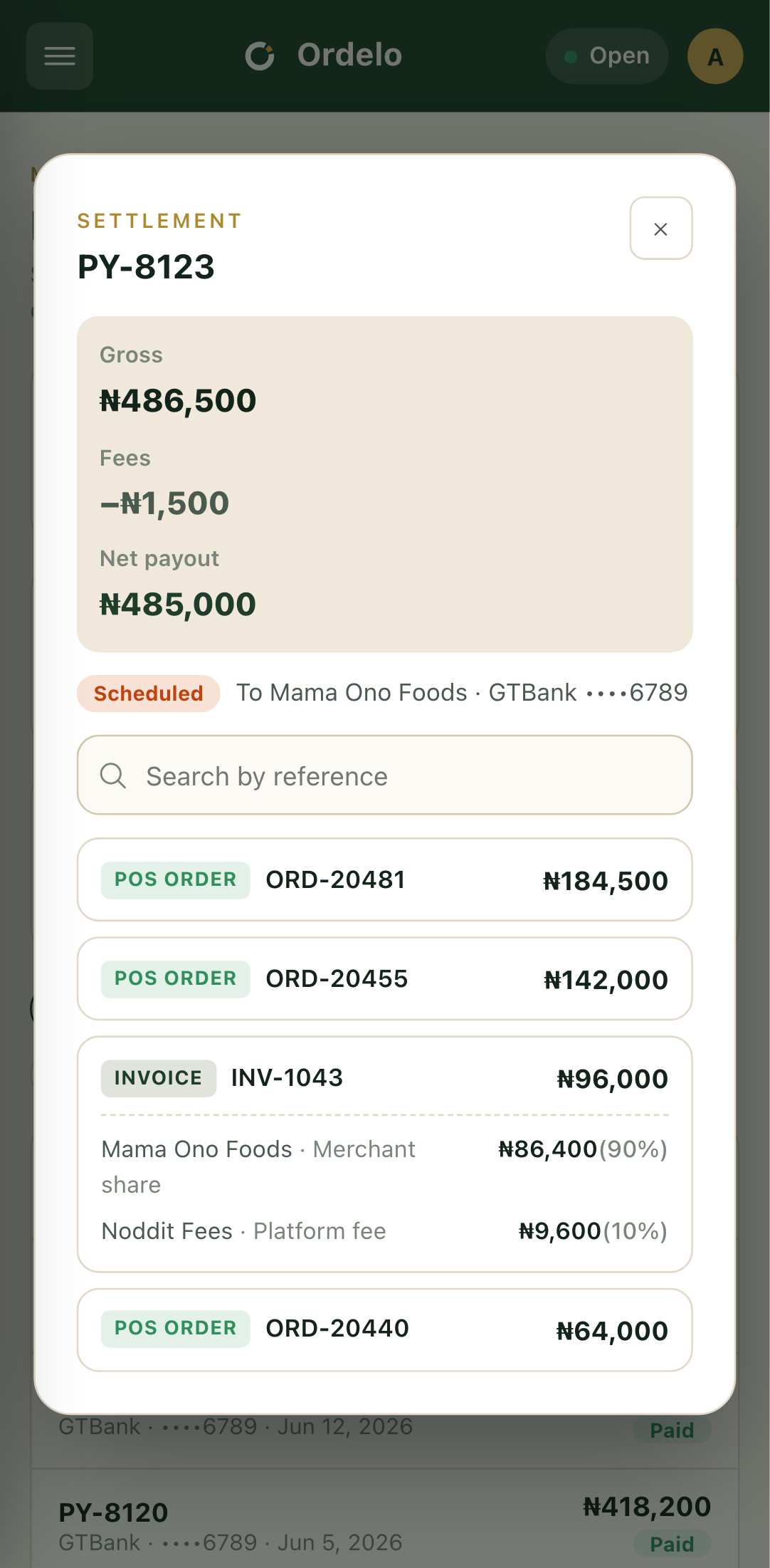 A settlement breakdown
Tips
- A payout groups many orders. One transfer usually settles a batch of sales at once, which is why the amount won't match any single order.
- Net is what you keep. Gross is the full settled amount. Fees come off the top. Net payout is what reaches your bank.
- A failed payout almost always means account details. Open Store → Account, re-check the bank and account number, and let the name re-verify.
- The list stops at 90 days. For older records, use your reports. See The reports hub.
Related
- Set up your first store — where to set your settlement account
- Refunds
- Invoices