Refunds
When a customer asks for their money back, the request lands here for you to review. Approving a refund credits the customer's reward points, which they can spend on their next order.
Where to find it: open Refunds from the sidebar, or go to
/refunds.
Before you start
- Refunds are paid out as reward points, not cash back to a card. The customer can spend those points right away.
- You can only act on refunds for your own store's orders.
- Some refunds show up here already Completed. For example, when a vendor can't fulfil an item, the system refunds it on its own. There's nothing for you to do on those.
Read the inbox
The screen opens on the Pending review queue. Use the tabs to switch between Pending review, Completed, Rejected, and All. The From and To date fields narrow the list to a period, and Clear resets them.
Each row shows the order number, a status pill, the customer, the reason, who raised it, the store, the date, and the amount. If there's a short note under the row (the review hint), it flags things worth knowing before you decide, like whether the request is inside the refund window or has evidence attached.
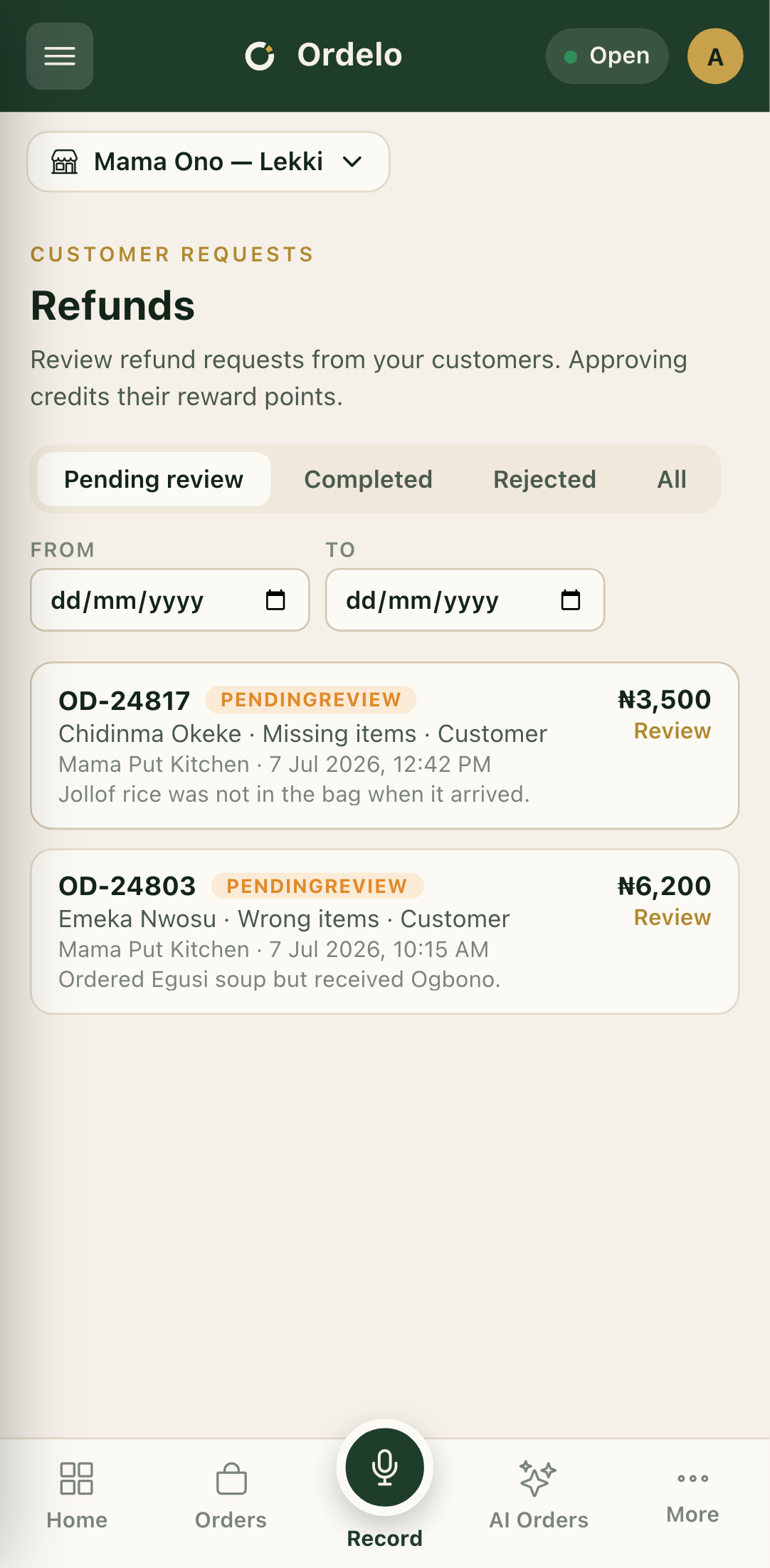 Refunds inbox
Approve or reject a request
- On the Pending review tab, tap a row to open Refund details.
- Read the breakdown: the amount at the top, the order, the reason, the type, and who raised it.
- Check the Items list to see exactly what's being refunded. A whole-order refund says so instead of listing lines.
- If the customer attached photos, they show under Evidence. Tap one to open it full size.
- Type a note in the Notes box. On a rejection this note is shown to the customer, so keep it clear.
- Tap Approve refund to credit the customer's points, or Reject to decline. The refund leaves the queue once you decide.
Tips
- Approving is final. Once you approve, the points are credited straight away. There's no undo, so check the items and amount first.
- The note matters on a reject. Your note becomes the reason the customer sees. A one-line explanation saves a back-and-forth.
- Only pending refunds can be actioned. Rows on the Completed or Rejected tabs open for reference only, with a Close button instead of Approve/Reject.
- Getting ahead of a complaint? If you already know an item was missing or wrong, you don't have to wait for the customer. Raise the refund yourself from the order's own screen. See Order details and actions.
- Read the hint. The short note under a row tells you at a glance whether the request passes the standard checks. It's there to speed up an easy yes.