Take an order (POS)
The point of sale is where you ring up an order at the counter. You build the order from your menu, then choose how it's served and how it's paid when you check out.
Where to find it: open Orders → New order, or go to
/orders/new.
Plan
This is a paid feature. Check that your current plan includes it before you rely on it. Open Plans and subscription to compare plans and upgrade.
Before you start
- Add your products first, or the catalog will be empty. See Build your menu.
- Good to know: you don't pick dine-in, pickup, or delivery up front. You build the order first, then choose how it's served at checkout.
Build the order
- Open Orders → New order. The screen opens on your product catalog with the order panel beside it (titled Current order).
- Find a product. Type in the Search products… box, or tap a category chip along the top. All shows everything.
- Add an item by tapping its card.
- A simple item drops straight into the order. Tap it again to add another.
- An item marked Options opens a Customize popup instead.
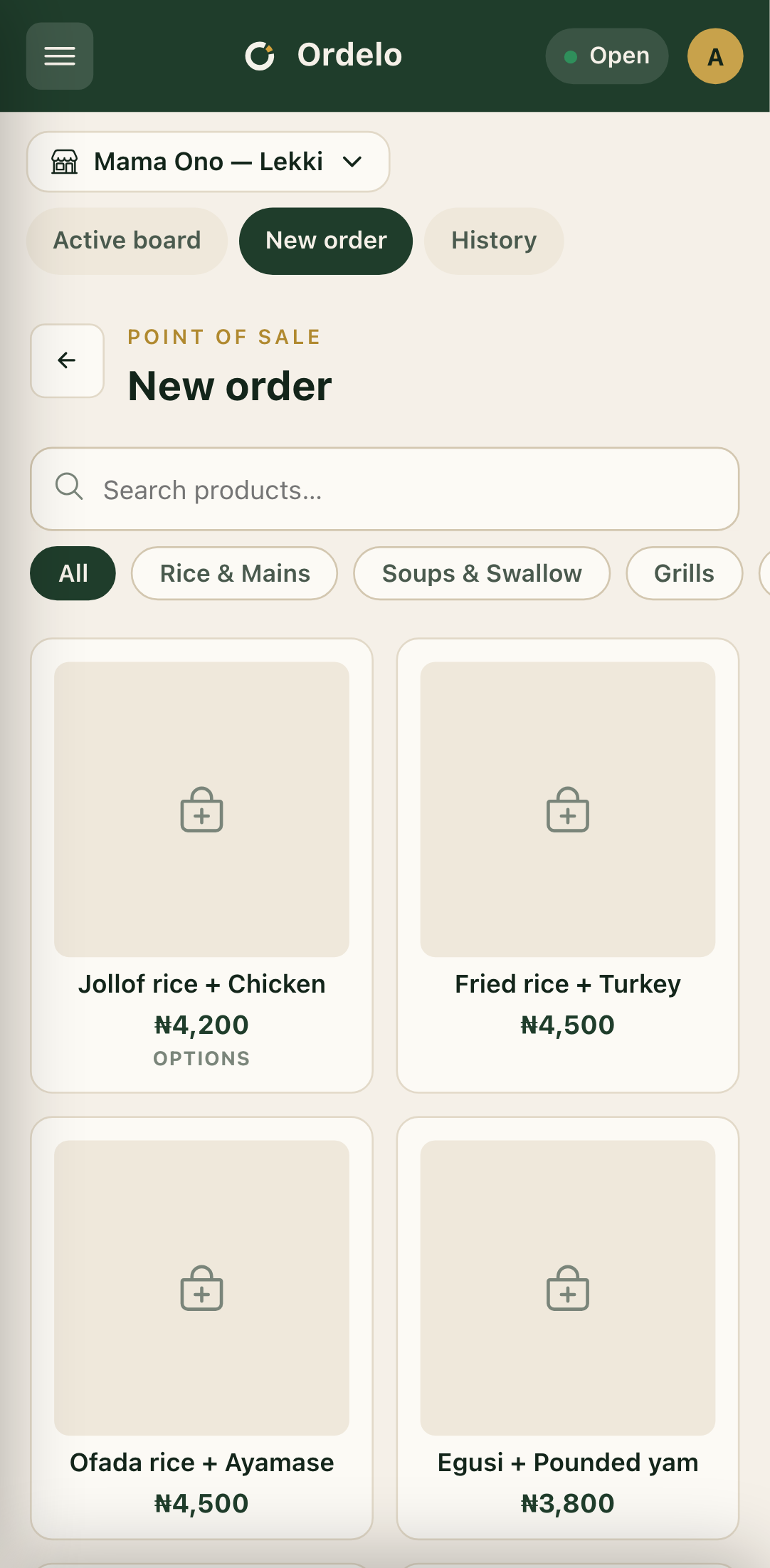 The product catalog
- In the Customize popup, set the Quantity, then choose the options. Groups marked Required must be filled. Add-on prices show as "+₦…". Tap Add to put the line in the order.
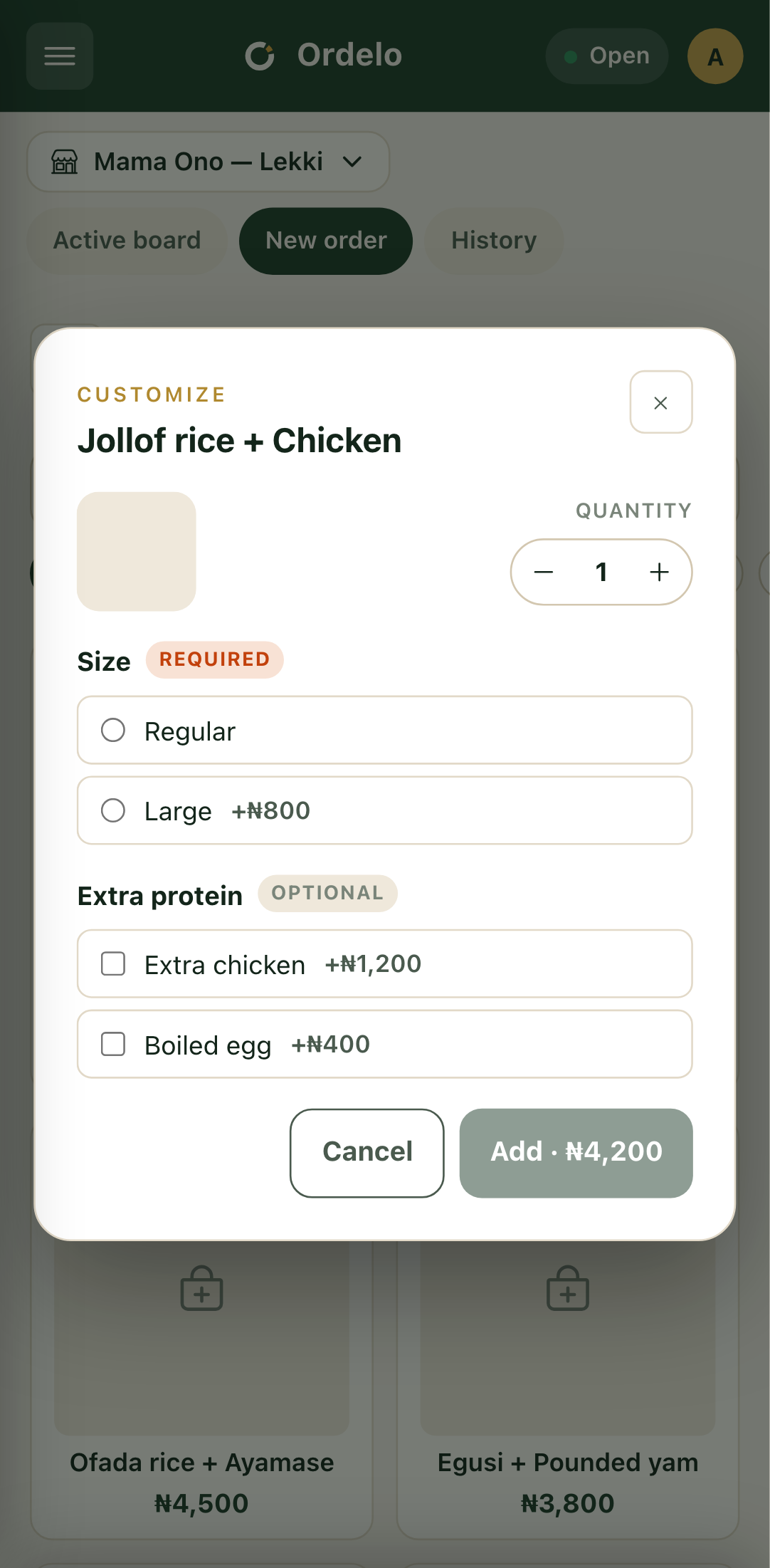 Customising an item
- Check the Current order panel. Each line shows the item, any options you picked, a quantity stepper, and the line total. Use the pencil to change a line's options, the stepper to change quantity, or Clear all to start over. On a phone, tap View order to slide the order panel up.
- Read the totals at the bottom: Subtotal, Taxes & charges if any apply, and the Total.
- Tap Checkout to continue.
Check out
The Checkout sheet is where you choose the service type and finish the order.
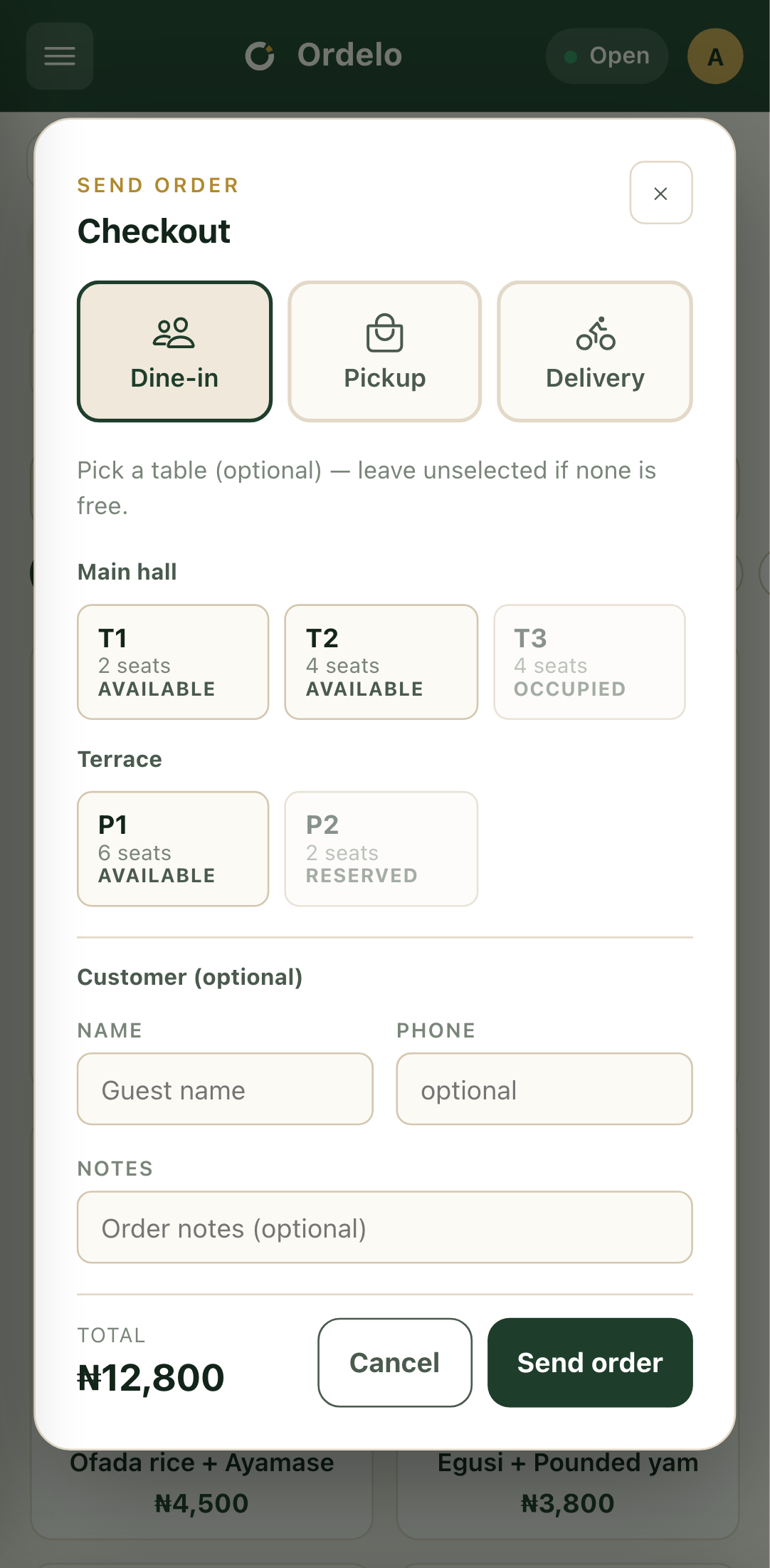 The checkout sheet
- Choose a service type at the top: Dine-in, Pickup, or Delivery. (Dine-in appears if your store has the dine-in feature.)
- If Dine-in: pick a table if one is free (this is optional), and add a guest name if you like. There's no payment step for dine-in here.
- If Pickup or Delivery: attach a customer. Tick Use my account details, search Find an existing customer…, or type their name, phone, and email.
- If Delivery: choose who delivers under Delivery handled by, then fill in the Delivery address. You can tap Use customer's current location to fill it in fast.
- If Pickup or Delivery: choose how they pay under the payment options: Cash, Bank Transfer, or POS.
- Add anything the kitchen should know in Notes (optional).
- Check the Total, then tap Send order. The order is placed and appears on your orders board.
Tips
- Build first, decide service last. It's normal that the screen opens on products with no dine-in or table prompt. That choice comes at checkout.
- Required options block the Add button. If you can't add a customized item, a required choice is still empty.
- A locked line can't be reduced. Once the kitchen has started an item, its quantity is locked so you don't remove food already being made.
- Editing an existing order? The screen reads Edit order and the button becomes Update order, which saves your changes without going through checkout again.