Build your menu
Your menu is everything you sell, sorted into categories so it's quick to find. This is where you set up those categories and see all your products in one place.
Where to find it: open Menu → Menu items, or go to
/menu.
Plan
This is a paid feature. Check that your current plan includes it before you rely on it. Open Plans and subscription to compare plans and upgrade.
Before you start
- Sort out your categories first, then add products into them. It's the order that saves you time.
- Think in the same groups your customers do, like "Rice & Mains", "Drinks", or "Sides".
The two tabs
The Menu screen opens with two tabs at the top: Categories and Products. It starts on Categories.
Add a category
- On the Categories tab, tap New category.
- Type a Name, for example "Rice & Mains".
- Add an Image if you want one. Tap Choose image, pick a photo, and it shows a preview. This is optional.
- Tap Save. The category appears as a card showing its name and how many products are in it.
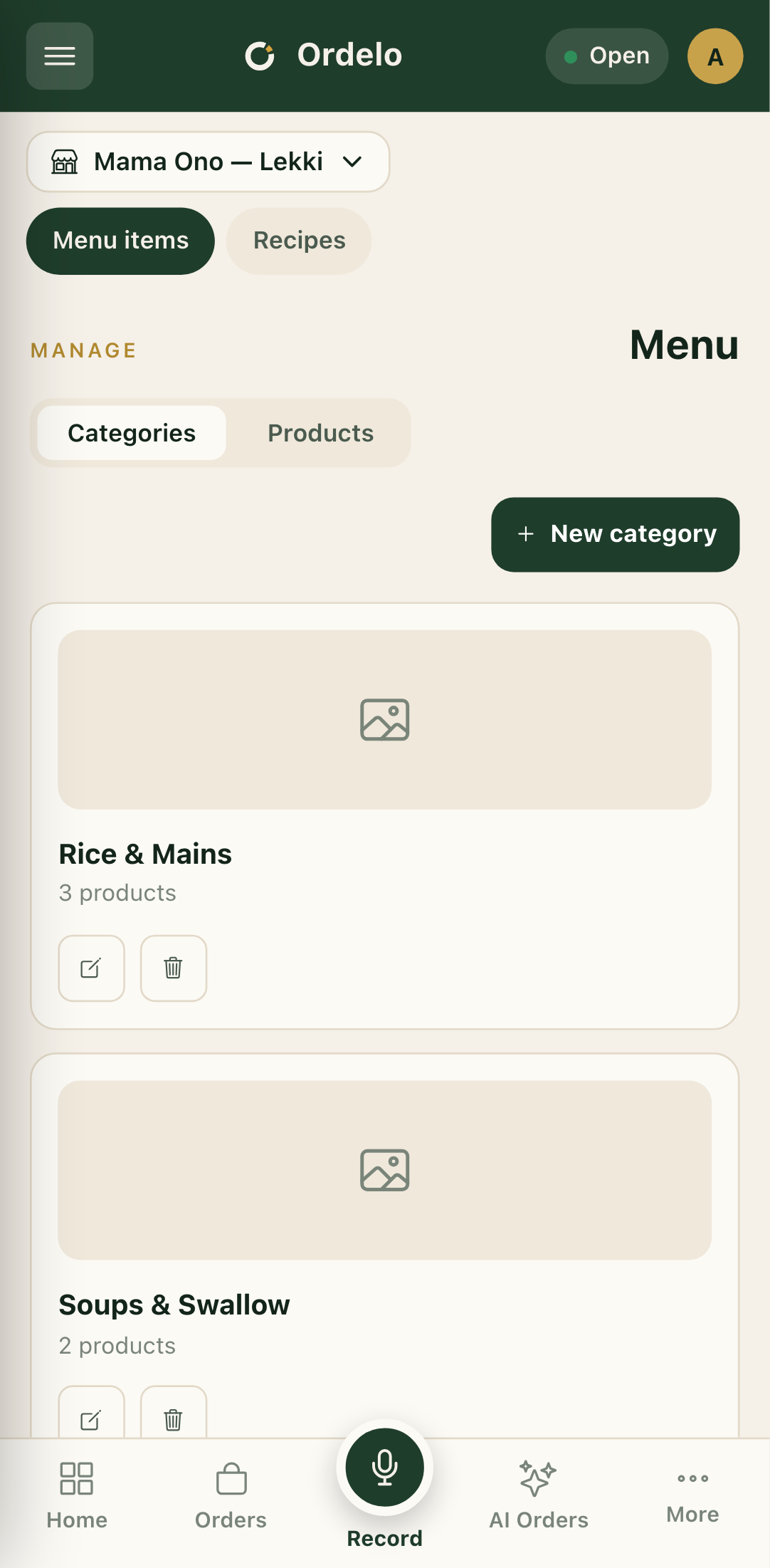 Menu overview
Edit or delete a category
- To rename a category or swap its image, tap the pencil icon on its card, make your change, and tap Save.
- To remove one, tap the trash icon. You'll be asked to confirm. Deleting a category does not delete its products. They stay, but lose their category until you assign a new one.
See your products
Switch to the Products tab to see everything you sell. From here you can:
- Search by name or SKU in the search box.
- Filter by inventory type using the tabs (All, Finished goods, Ingredients, Raw materials, General).
- Filter by category using the chips below.
- Add a product with New product, or import many at once with Bulk upload.
Each product row shows its name, category, stock status, and price. Tap the more actions button (the three dots) on a row to 86 (mark unavailable), Edit, or Manage stock.
Tips
- Categories before products. When you add a product, you pick its category from a list. If the list is empty, you can't file the product anywhere, so set up categories first.
- Deleting a category is safe for your products. They aren't removed, they just need re-filing.
- "86" means mark it unavailable. Use it when you've sold out of something for the day. Restore it the same way when it's back.
- The stock labels are quick flags. A product reads "Out of stock", "Low stock" when it's down to the last few, or the count in stock. Adjust the actual numbers on the Inventory screen.