Bulk-update products
Editing products one at a time is slow when you have a long list. This tool lets you download a spreadsheet, change many products at once, preview the changes, and apply them in one go.
Where to find it: open Menu, go to the Products tab, and tap Bulk upload, or go to
/menu/products/bulk.
Plan
This is a paid feature. Check that your current plan includes it before you rely on it. Open Plans and subscription to compare plans and upgrade.
Before you start
- Set up your categories first. The spreadsheet files each product under a category. See Build your menu.
- You need a spreadsheet app to open the template (
.xlsx). - The template comes pre-filled with your current products, so you're editing what's already there, not starting blank.
Steps
- Open the Bulk upload screen. Under step 1, tap Download template. It downloads a spreadsheet pre-filled with your products and lookup sheets.
- Open the file and edit it: change rows to update products, add rows to create new ones, or mark rows for deletion.
- Back in the app, under step 2, choose your edited file and tap Preview changes.
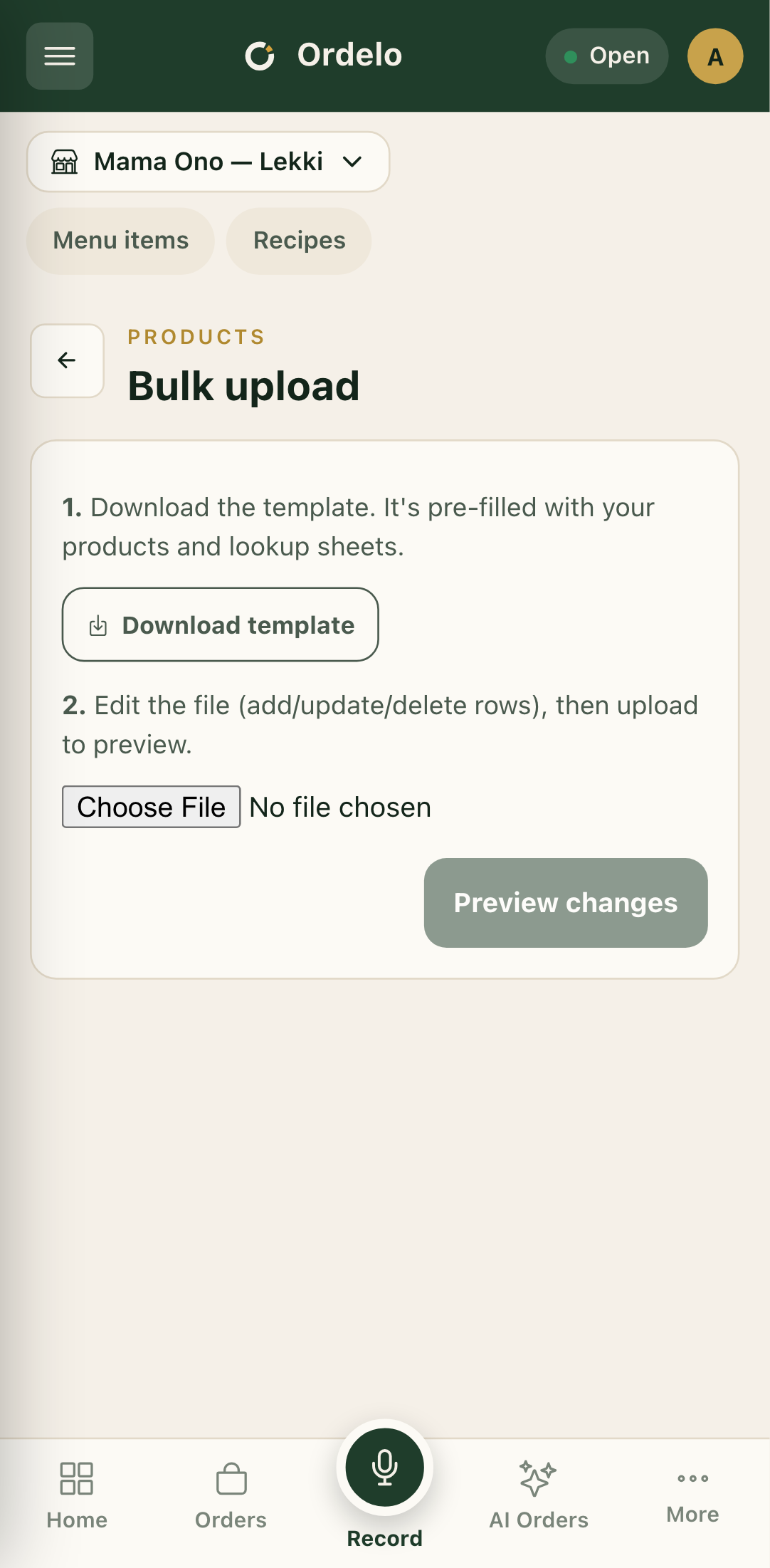 Bulk update screen
- Review the preview. The tags at the top count what will happen: insert, update, delete, skip, and invalid rows. Any file problems or new categories and tags show in a banner above.
- Check each row. Every row has an action (Insert, Update, Delete, or Skip) and a badge showing OK or how many issues it has. Use the filter chips (All, Insert, Update, Delete, Errors) and the Search rows box to move around.
- Fix any issues right in the preview. For insert and update rows you can edit the Name, Category, Unit, Price, Stock, Status, and Type. You can also Add row or remove a row with the trash icon.
- When every row reads OK (or is set to Skip), tap Apply changes.
- On the result screen you'll see how many products were Inserted, Updated, Deleted, and Skipped (and Failed, if any). Tap Done to return, or Upload another to go again.
Tips
- Apply is blocked until the rows are clean. If Apply changes is greyed out, at least one row still has an issue and isn't set to Skip. Filter to Errors to find them fast.
- Skip leaves a product untouched. Set a row to Skip when you want to ignore it this time without deleting anything.
- New categories are created for you. If your file names a category that doesn't exist yet, the banner flags it and it's created when you apply.
- Edits in the preview count. If you change anything in the preview, the app applies your edited rows rather than re-reading the raw file, so your fixes carry through.
- Deletes are real. A Delete row removes the product. Double-check those rows before applying.