Track stock
The Inventory page shows how much of each item you have left, and lets you adjust a count by hand when you restock, do a stock count, or write off damage.
Where to find it: open Nav → Inventory, or go to
/inventory.
Before you start
- Add your products first. Anything you want to track has to exist on your menu. See Build your menu.
- Turn on stock tracking for the store if you haven't. It's on the Store → Inventory tab, along with your low-stock alerts. See Set up your first store.
Steps
- Open Nav → Inventory. The list shows one row per item, with its stock count on the right.
- Narrow the list with the tabs at the top: All, Low stock, or Out of stock.
- Find a specific item with the Search by name or SKU… box.
- Read each row. It shows the item name, its SKU or Product ID chip, the category, the price, and a stock badge (in stock, low, or out).
- Tap the clock icon on a row to see its Stock movements history, showing each change with a date, reason, and the running stock after it.
- To change a count, tap Adjust on the row.
- In the Adjust stock popup, choose a direction: Add (stock in) when more arrives, or Remove (stock out) for a write-off or correction.
- Enter the Quantity. The New stock line previews what the count will become.
- Add a Reason if you want, for example "restock", "stock count", or "damage". It's optional but it's what shows in the history later.
- Tap Apply to save.
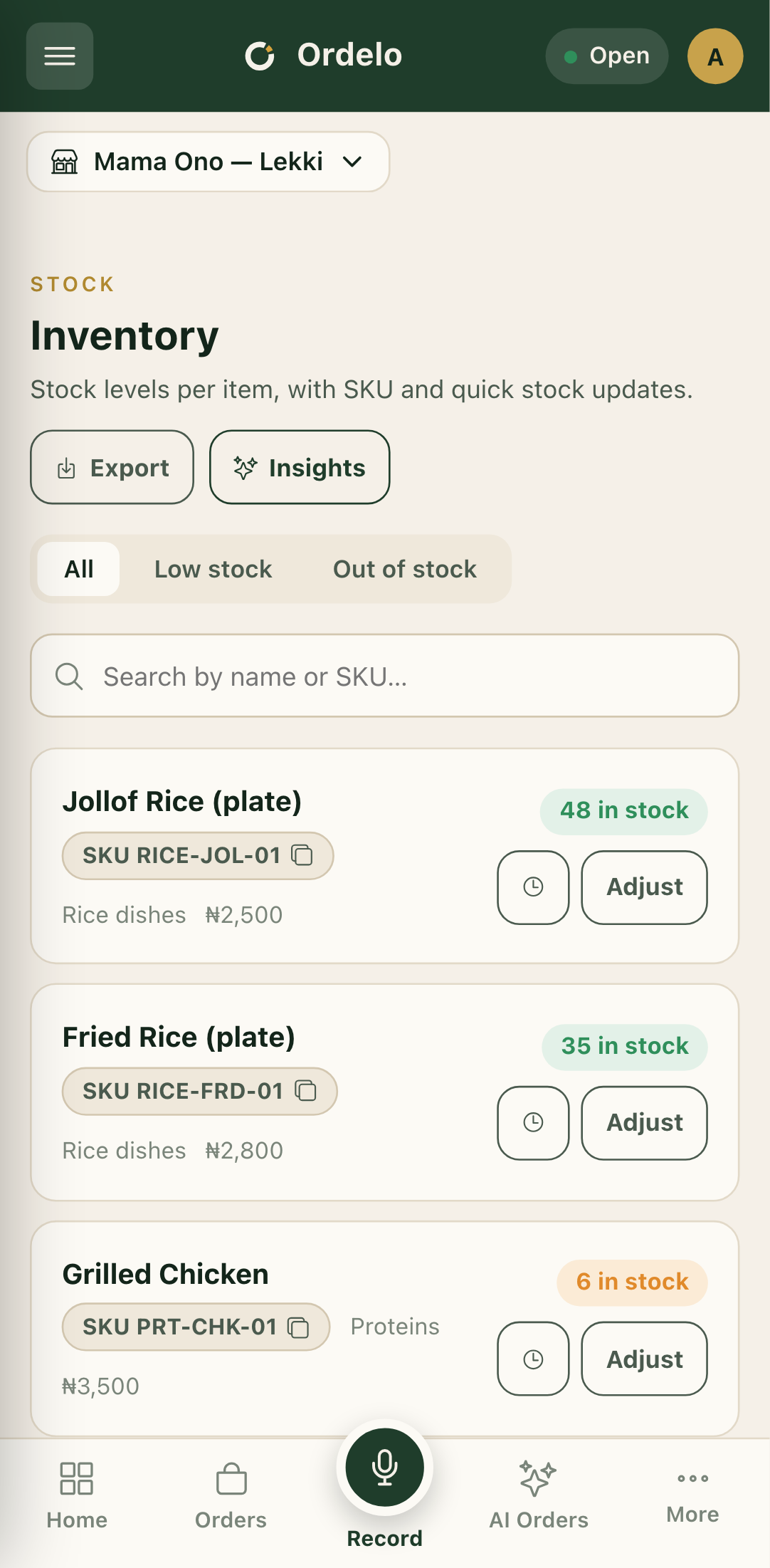 Inventory list
Tips
- Sales already move stock for you. When a sale goes through, the item's count drops on its own. Use Adjust for the things a sale can't see: new deliveries, breakages, and counts that don't match.
- The SKU chip copies on tap. Tap it to copy the SKU (or Product ID) to your clipboard, handy for looking an item up elsewhere.
- Give every adjustment a reason. It's the only way the movement history stays readable later. "Damage" and "stock count" tell you very different stories a month from now.
- Variations count separately. If an item has variations, each one carries its own stock and shows a small tag next to the name.
- Export the whole list. The Export button downloads every item and its stock value as a spreadsheet. This is part of the reporting tools and may prompt an upgrade on lower plans.
- Want the money picture, not just the counts? Tap Insights in the top corner. See Inventory insights.