The orders board
The order board is your live kitchen view. It shows every active order and moves each one along as your team works, so you always know what's coming in, what's cooking, and what's ready to hand over.
Where to find it: open Orders, or go to
/orders.
Plan
This is a paid feature. Check that your current plan includes it before you rely on it. Open Plans and subscription to compare plans and upgrade.
Before you start
- You need at least one active order. New orders arrive from the counter (see Take an order) and from your sales channels.
- The board shows the store you're currently in. Switch stores from the store name at the top of the app if you run more than one.
How the board works
The board has three columns that follow an order's life:
- Incoming — new orders waiting for you to accept or reject.
- Preparing — orders you've accepted that the kitchen is working on.
- Ready — orders that are done and waiting to be handed over, collected, or served.
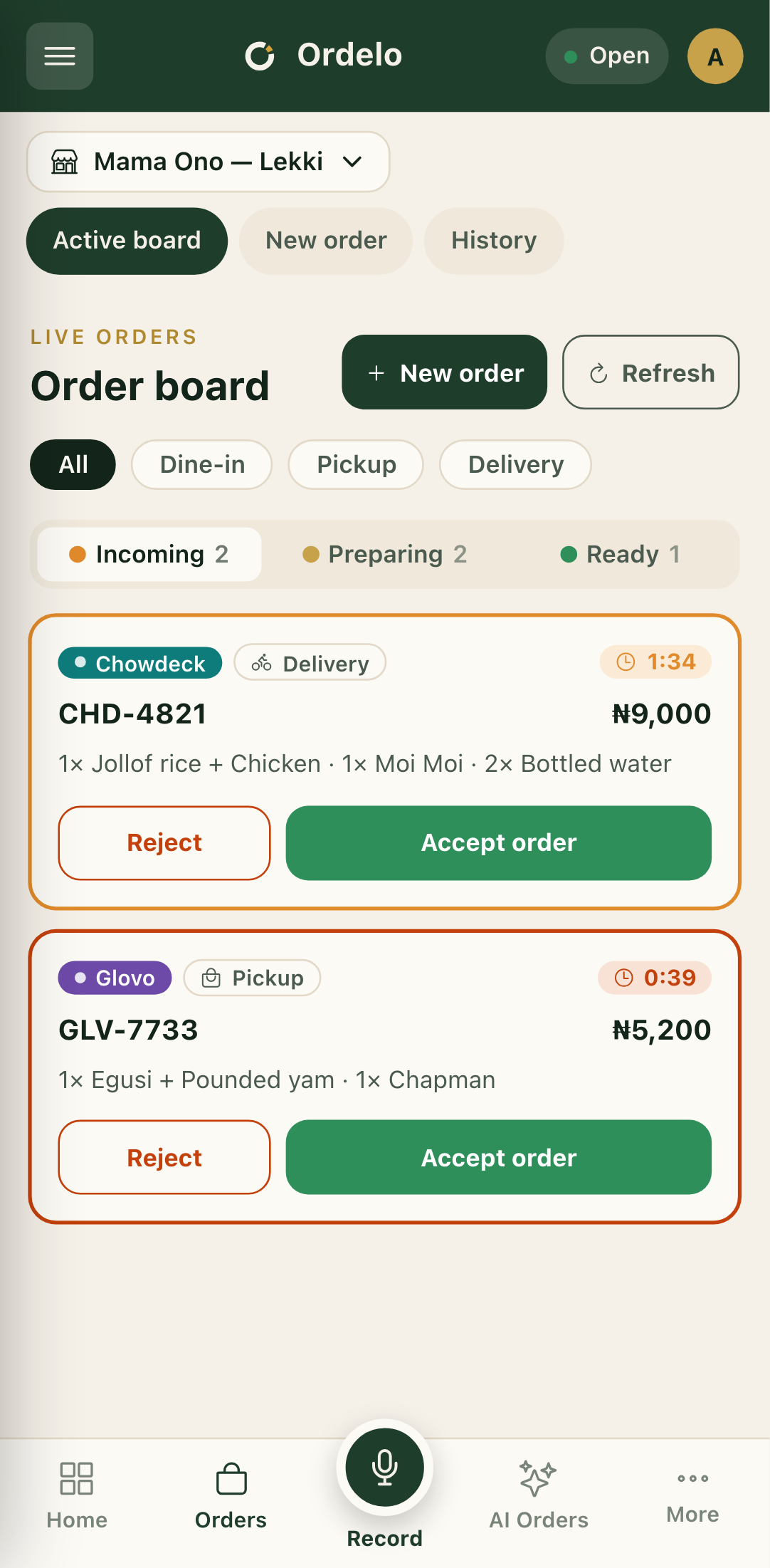 Active orders board
On a phone the three columns become tabs. Tap Incoming, Preparing, or Ready to switch between them. Each tab shows a count so you can see where the load is.
Steps
- Open Orders. The board loads the active orders for your current store.
- Use the filter chips at the top to narrow by service type: All, Dine-in, Pickup, or Delivery.
- Work an order straight from its card using the buttons on it, for example Accept order or Mark ready. The card moves to the next column as its status changes.
- Tap a card to open the full order when you need more detail or the other actions. See Order details and actions.
- Tap Refresh any time to pull the latest orders. On a phone you can also pull down from the top of the board to refresh.
- Tap New order to ring up an order at the counter.
Tips
- Empty column? A column reads "Nothing here yet" when there's nothing at that stage. That's normal during a quiet spell.
- Nothing changing? Tap Refresh, or pull to refresh on a phone, to make sure you're seeing the latest.
- Filter, then focus. If you only handle pickups at one station, set the Pickup chip so the board shows just those.
- Keep the screen on. The board keeps your device awake while it's open so it won't sleep mid-service. Close the page when you're done to let it sleep again.