Order details and actions
The order detail page is where you work a single order end to end. You can see everything about it, move it through its stages, deal with an item you can't make, and print a receipt.
Where to find it: tap any order on the board or in history, or go to
/orders/:id.
This is a paid feature. Check that your current plan includes it before you rely on it. Open Plans and subscription to compare plans and upgrade.
Before you start
- Open an order first, from The orders board or Order history.
- The action buttons you see depend on the order's stage and service type. A brand-new order shows Accept and Reject; a finished one is read-only.
What's on the page
The order opens with the order number, its status, and these sections down the page:
- Customer (or Table for dine-in) — name, phone, and the delivery address or table.
- Items — every line with its quantity, options, and price.
- Payment — the subtotal, any charges, the total, and whether it's paid.
- Progress — a timeline of the stages the order has passed.
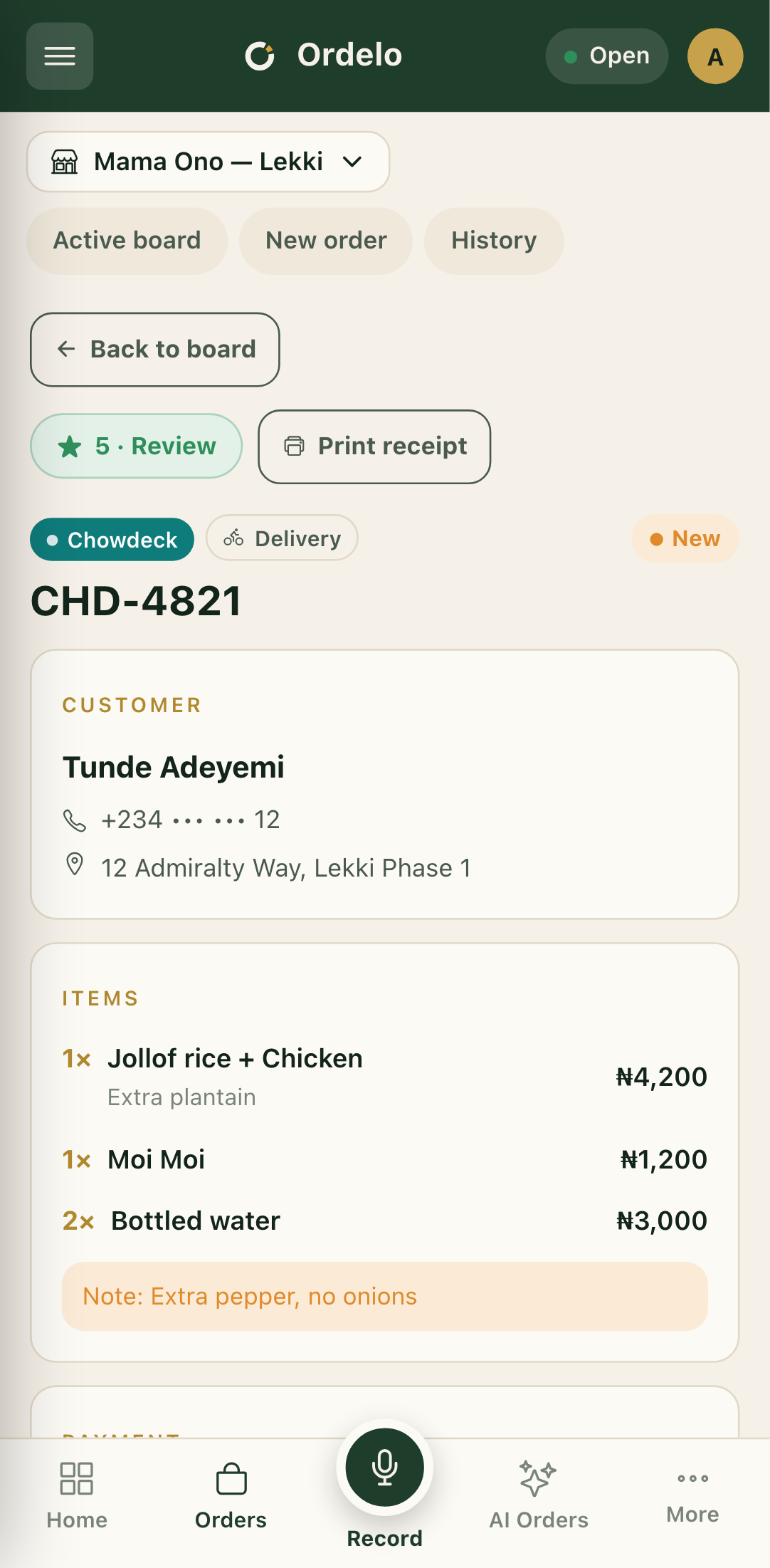 Tap any order on the board to open its detail
Accept or reject a new order
- Open a new order from the Incoming column.
- Tap Accept order to start it, or Reject to turn it down. Reject asks you to confirm first.
- Once accepted, the order moves to Preparing.
Move the order along
The main button changes with the stage:
- While preparing, tap Mark ready (dine-in orders read Mark ready to serve) when the food is done.
- When it's ready, hand it off:
- Pickup: tap Mark collected once the customer takes it.
- Delivery: tap Mark delivered once it's dropped off.
- Dine-in: tap Mark served as items go out, then Checkout to take payment and close the order.
If a button is greyed out, a note under it says why. For example, a delivery order can't be marked delivered until you turn on delivery in your store settings, and some channel orders can't be accepted until the customer's payment clears.
Update the items
On an accepted order you can still add to it. Tap Add items to reopen the order in the point of sale and add more. See Take an order.
Swap or remove an item you can't make
If you run out of something after accepting the order, you can propose a swap or drop the line. This is available while the order is still being prepared, not after it's on its way.
- In the Items section, tap Can't fulfil this on the line you can't make.
- In the Can't fulfil this item popup, set How many are unavailable. Leave it at the full quantity to affect the whole line.
- Choose Replace with… to offer a substitute, or Just remove it to drop the line.
- For a replacement, use Search products to add as replacement… to pick one or more products and set their quantities.
- Check or edit the Reason. The order already fills in a default.
- Tap Propose substitution (or Remove item). A banner appears on the order showing the amendment's status, for example while it waits for the customer to approve or pay.
Print a receipt
Tap Print receipt at the top of the page. If nothing prints, allow printing in your browser and try again.
Tips
- Reject is a confirm. You'll be asked to confirm before an order is turned down, so a mis-tap won't lose the order.
- Dine-in is served and paid separately. Marking items served does not close the order. Checkout is the step that takes payment and finishes it.
- Substitutions have a deadline. When a swap waits on the customer, the banner shows when it auto-declines. If it's declined, the item is refunded.
- Coming from history? Old orders open read-only, so the lifecycle buttons and the "Can't fulfil this" option won't show.