Invoices
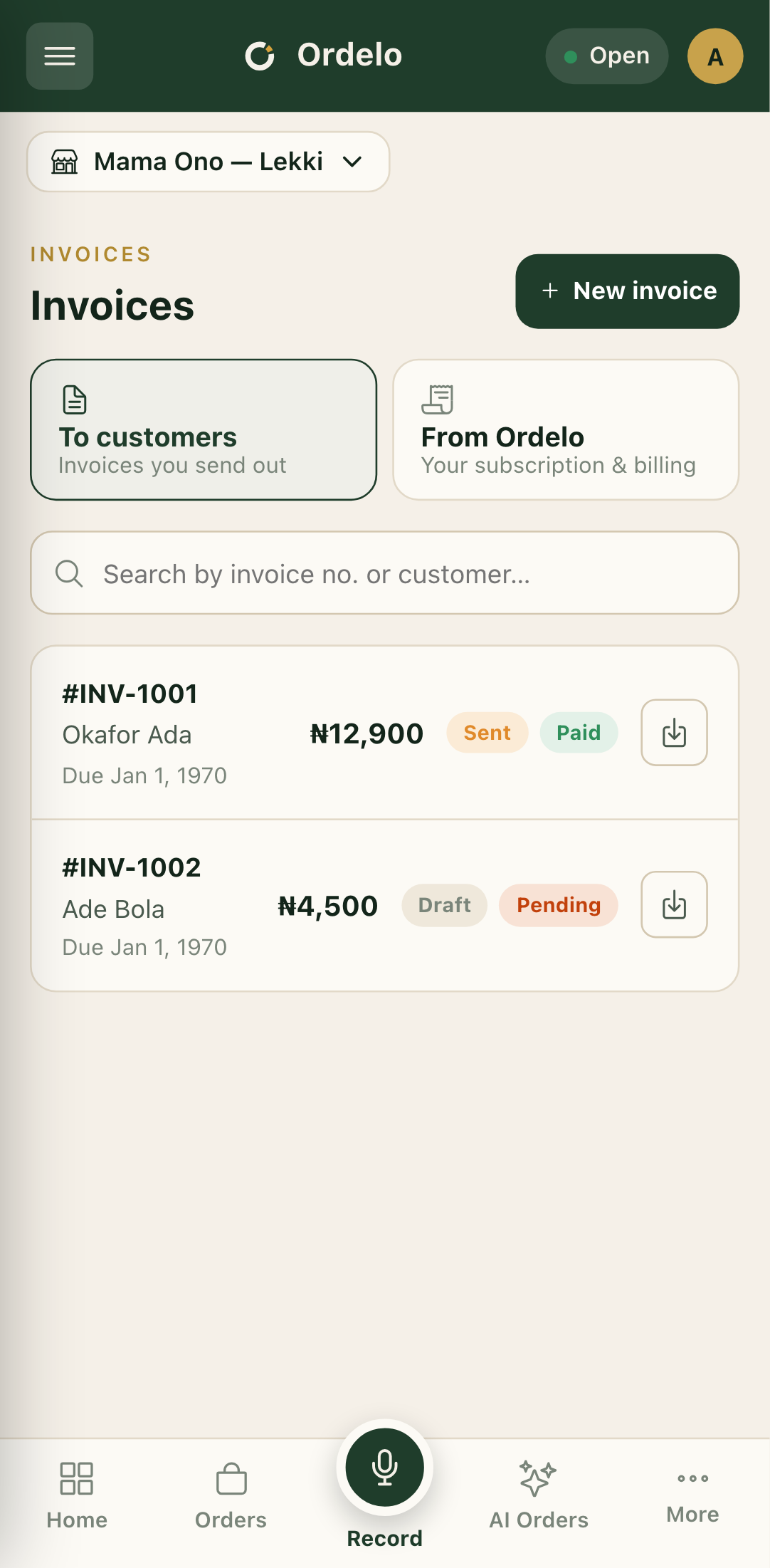
Two things live on this screen: the invoices you send to your own customers, and the bills Ordelo sends you for your subscription. The tabs at the top switch between them.
Where to find it: open Invoices from the sidebar, or go to
/invoices.
Before you start
- Sending invoices to customers is a plan feature. If it's locked, the To customers tab shows a "See plans" button that takes you to upgrade. Viewing your own bills from Ordelo is always free.
- To bill a customer, they need to already exist in your customer list. You pick from existing customers, you don't type a new one here. See Customer directory.
The two tabs
- To customers — invoices you create and send out. This is where you bill someone and track whether they've paid.
- From Ordelo — bills Ordelo issued to you for your subscription and add-ons. You don't create these. You just settle any that are still pending.
If your plan doesn't include customer invoicing, the screen opens on the From Ordelo tab by default.
 Invoices
Send an invoice to a customer
- On the To customers tab, tap New invoice (top right).
- Under Bill to, use Search a customer… and pick the customer you're billing.
- Under Items, fill each line: an item description, Qty, and Price. The line Total fills in as you type.
- Tap Add item to add more lines. Use the trash icon to remove a line (you can't remove the last one).
- In the Details card, set a Due date and a Status: Draft keeps it private, Sent marks it as issued.
- Add Tax in the totals card if any applies. The Total updates to Subtotal plus tax.
- Tap Create invoice. You land back on the list with the new invoice at the top.
Read the list
Each row shows the invoice number, the customer, the due date, and the amount. On the right are the status badges:
- The first badge is Draft or Sent (has it gone out).
- The second badge is the payment status: Paid, Pending, or Failed.
Tap a row to open the full invoice. Tap the download icon on a row to save it as a PDF without opening it.
Settle a bill from Ordelo
- Switch to the From Ordelo tab.
- Find any bill with a Pending or Failed badge.
- Tap Pay on that row. It opens Ordelo's secure payment link to settle it.
- Bills that are already paid show a download icon instead, so you can save a copy for your records.
Tips
- Draft vs Sent is up to you. Saving as Draft lets you prepare an invoice without it counting as issued. Switch it to Sent when you're ready.
- Pick the customer first. The Create invoice button stays disabled until you've chosen a customer and every line has a description, quantity, and price.
- You don't create the Ordelo bills. The From Ordelo tab is read-only apart from paying. If a subscription bill looks wrong, check your plan on the Plans and subscription screen.
- A failed bill just needs another try. If a subscription payment failed, tap Pay again to retry with a working card.