The reports hub
The reports hub is one screen with a card for every report you can run. Open one in a single tap. Your plan decides which cards are unlocked.
Where to find it: open Insights → Reports, or go to
/reports.
Plan
This is a paid feature. Check that your current plan includes it before you rely on it. Open Plans and subscription to compare plans and upgrade.
Before you start
- You need some sales history for the numbers to be worth reading. A brand-new store shows empty reports until orders start coming in.
- Reports read from the store you're currently in. Switch stores from the store name at the top if you want another one.
Steps
- Open Insights → Reports. The cards are grouped under Sales & Finance and Inventory & Operations.
- Read each card. It shows a title and a short line of what's inside, for example Sales summary ("Revenue, orders, channels and top sellers at a glance").
- Tap a card to open its report.
- If a card shows a lock with a plan name (like "Standard plan"), it's not on your plan yet. Tapping it opens an upgrade prompt instead of the report.
- A card marked Coming soon isn't ready to open yet. Check back later.
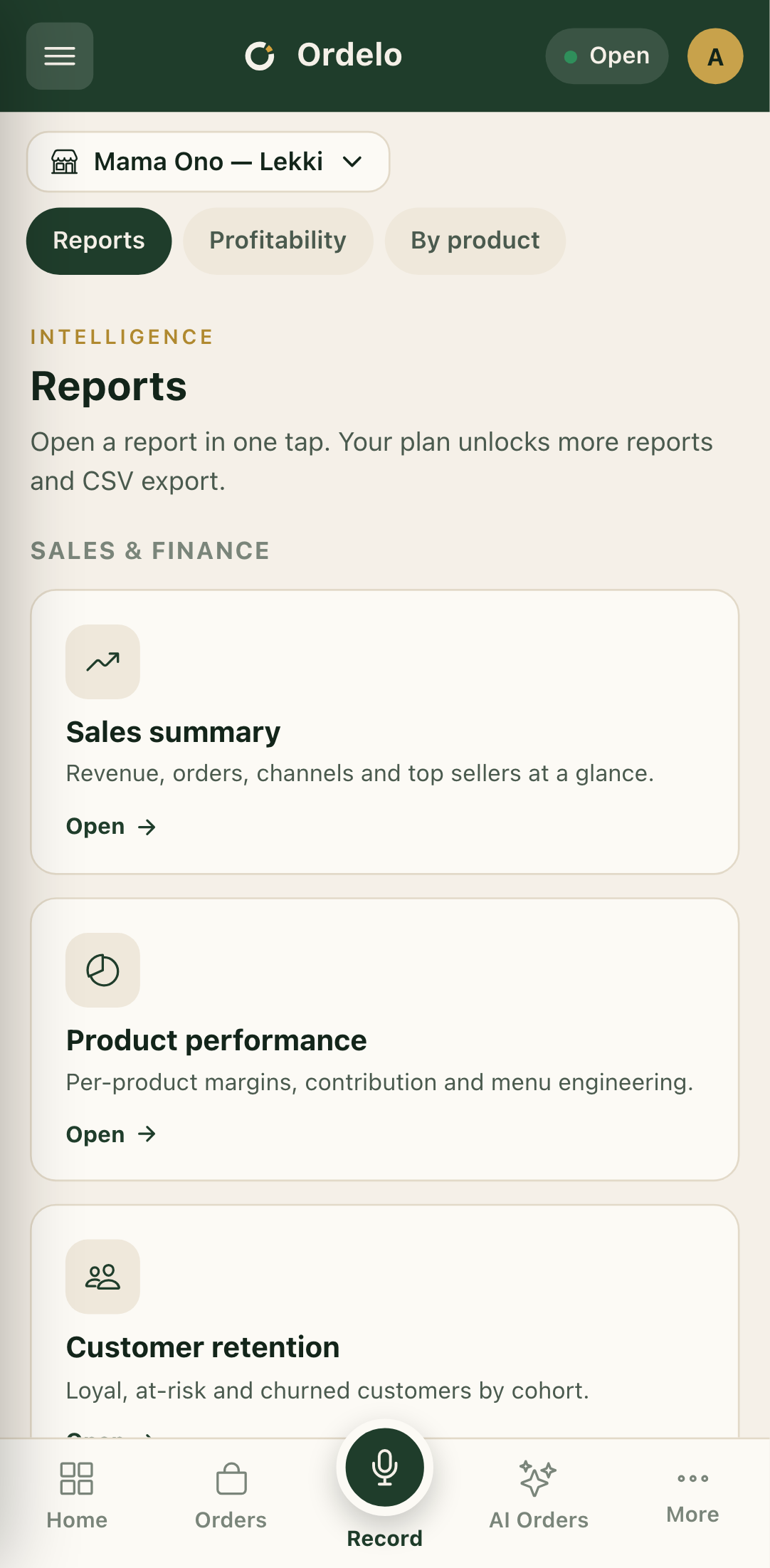 Reports hub
Tips
- Locked cards stay visible on purpose. You can see every report that exists, so you know what an upgrade would give you. The lock badge names the plan each one needs.
- Where to export. The hub itself doesn't export. Open a report first, then use its own Export button. See Sales report.
- The cards route to different screens. For example Sales summary opens the Sales report, and Product performance opens product profitability. They're all reachable from here.
- Nothing to see yet? If a report is blank, it usually means no orders in that date range, not a fault.