Connect a sales channel
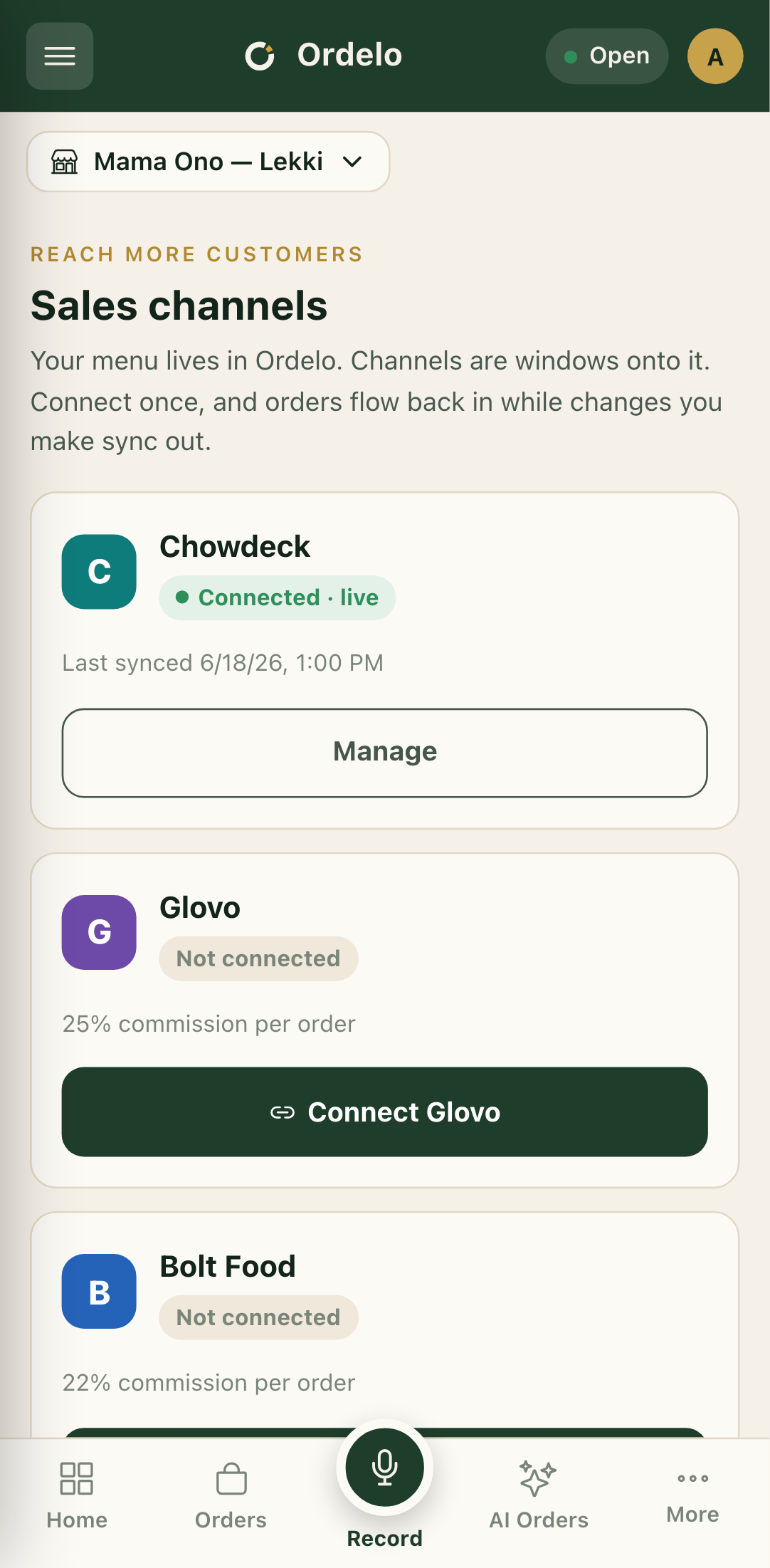
A sales channel is another place your store shows up, like a delivery marketplace. You connect it once, your menu is published out to it, and orders from that channel come back onto your normal orders board.
Where to find it: open
/channelsin the app.
Before you start
Your store has to be complete before a channel will accept it. If anything below is missing, the app shows a "Finish your store setup first" card and won't let you connect until it's sorted. These are the assets that get published to the channel:
- Store logo — so customers recognise you. Set it on Store.
- Cover photo — the background image for your storefront. Set it on Store.
- Menu items — at least one product, so there's a menu to sell. Add these on Menu.
- Settlement bank account — so the channel can pay you out. Set it on Store → Account.
Steps
- Open
/channels. Each channel shows as a card with its commission, for example "20% commission per order". - Tap Connect on the channel you want. WhatsApp works differently and has its own guide. See Take orders on WhatsApp.
- If your store isn't ready, you'll see the Finish your store setup first card. Each missing item has a Set up button that takes you to fix it. Come back to
/channelswhen they all read Ready. - Read the Commission screen. It shows the channel's rate and what it covers. Tap I understand, continue.
- Answer "Do you already sell on [channel]?"
- Yes, I have a store — link your existing channel store and import its menu.
- No, set it up for me — the app creates your channel store from your Ordelo menu.
 Channels
- If you already have a store: enter your Merchant reference and API key from that channel. The Webhook secret is optional and can be added later. Tap Connect & import. Your channel products are imported into your Ordelo menu, and the app tells you how many came across.
- If you're setting up fresh: confirm the Owner first name and Owner last name, and write a Short description of your store. Your contact details, address, and opening hours are pulled from your store profile, so you don't retype them. Tap Create & sync.
- On the Finish in [channel] screen, copy the webhook URL with the copy button and paste it into the channel's Developer Settings. This is what makes orders flow back to you.
- If the channel gives you a Webhook secret, paste it in and tap Save & finish. If not, tap I'll do this later and add it another time.
- You land on a confirmation. Orders from the channel now appear on your orders board, and changes you make in Ordelo sync out.
Manage a connected channel
Tap Manage on a connected card to see its Status, Reference, delivery model, and last menu sync. Tap Re-sync menu to push your current menu out again after you've changed prices or items.
Tips
- The settlement account lives under Store → Account, not Payments. Payments is how customers pay you. Account is where your money lands, and it's the one the channel needs.
- "Set it up for me" reads your store profile. Fill in your address, hours, and description on Store first, so the channel store it creates is complete.
- Re-sync after menu changes. Editing a price or item in Ordelo doesn't always reach the channel instantly. If something looks stale on the channel, open Manage and tap Re-sync menu.
- Direct orders are always on. The Direct / own orders card is your walk-in and counter sales. There's nothing to connect and no commission.