Capture orders with photo and voice
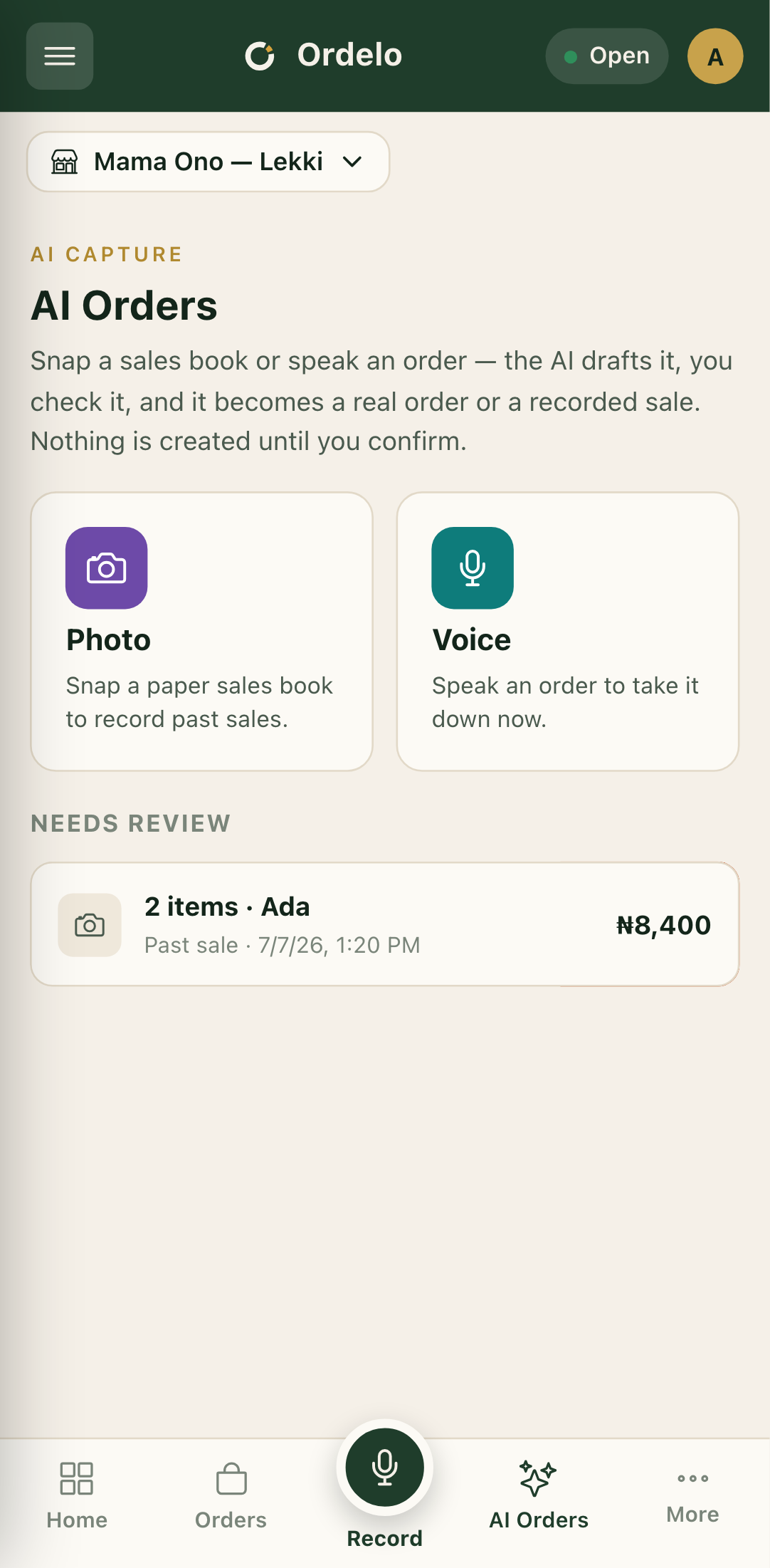
Snap a paper sales book or speak an order out loud. The AI turns it into a draft, you check it, and it becomes a real order or a recorded past sale. Nothing is created until you confirm.
Where to find it: open AI Orders in the app, or go to
/ai-orders.
Plan
This is a paid feature. Check that your current plan includes it before you rely on it. Open Plans and subscription to compare plans and upgrade.
Before you start
- Add your products first. The AI matches what it reads against your menu, so an empty or thin menu means more items it can't match. See Build your menu.
- Photo and Voice are separate features on your plan. Photo needs photo capture on your plan. Voice is metered, so if it isn't on your plan or your voice credits are used up, tapping it sends you to the plans page.
- Decide up front whether you're recording a past sale (something that already happened) or taking a live order (a new order now). You can change this on the capture screen.
Steps
- Open AI Orders. The screen opens on the capture hub with two buttons, Photo and Voice, and a Needs review list of drafts still waiting.
- Tap Photo to snap a sales book, or Voice to speak the order.
- At the top, choose what you're capturing: Live order or Past sale. Live order pulls prices from your menu and gives you a payment link. Past sale keeps the price written on the page.
- If Photo: tap Take or choose a photo and grab a clear shot of the sales-book page. To swap it, tap Choose a different photo.
- If Voice: tap Start recording and say the order naturally. Tap Stop when you're done. You can Play it back or Record again. The words shown on screen are only a preview. The AI reads your recording, not that text.
- Tap Read it with AI. You'll see Reading your order… while it matches items to your menu. This takes a moment.
 AI Orders capture
- Review the draft. Check every line's product, quantity, and price. Fix a wrong match with the product dropdown, change Qty, and (for a past sale) set the Price. Remove a line with the trash icon.
- Clear anything under Couldn't match by picking the right product for each. The AI remembers your choice next time.
- Set the Customer. Search Find existing customer to link one, or type a name and phone for a new one.
- For a live order, choose Delivery or Pickup. Delivery needs an address, so start typing it and pick a suggestion. Pickup needs no address.
- Tap Confirm order (live) or Record sale (past sale). For a live order you land on a Payment link you can Share, Copy, or Open. A past sale is recorded straight away with no payment link.
Tips
- Always check before you confirm. The AI can misread a quantity, a price, or an item. Catch it on the review screen, because confirm is the point of no return.
- The confirm button stays greyed out until the draft is clean. Every item needs a real product, any required options must be chosen, a past sale needs a price on each flagged line, and a delivery order needs an address.
- A photo page can hold several orders. If you shoot a full sales-book page, the AI splits it into separate orders and shows them as a list. Review and confirm each one on its own.
- Voice preview is not the order. Don't worry if the on-screen words aren't perfect. The AI listens to your recording.
- Left something half-done? Drafts wait for you under Needs review on the hub. Tap one to finish it, or swipe to discard.