Supplier directory
Keep the people you buy stock from, and the products they sell you, in one place. This is where you add a supplier and build the catalog you'll order from later.
Where to find it: open Suppliers → Directory, or go to
/suppliers.
Plan
This is a paid feature. Check that your current plan includes it before you rely on it. Open Plans and subscription to compare plans and upgrade.
Before you start
- Add the products you buy to your store first. When you build a supplier's catalog, you pick from your existing store products. See Build your menu.
- Have the supplier's basics handy: name, email, and a phone number. Category and payment terms are optional.
Add a supplier
- Open Suppliers → Directory. Tap Add supplier in the top right.
- Fill in First name and Last name.
- Enter the supplier's Email.
- Choose the phone Code and type the Phone number.
- Optionally add a Category (for example "Fresh produce"), Payment terms (for example "Net 14"), and a Business address.
- Tap Add supplier. The new supplier appears in the list.
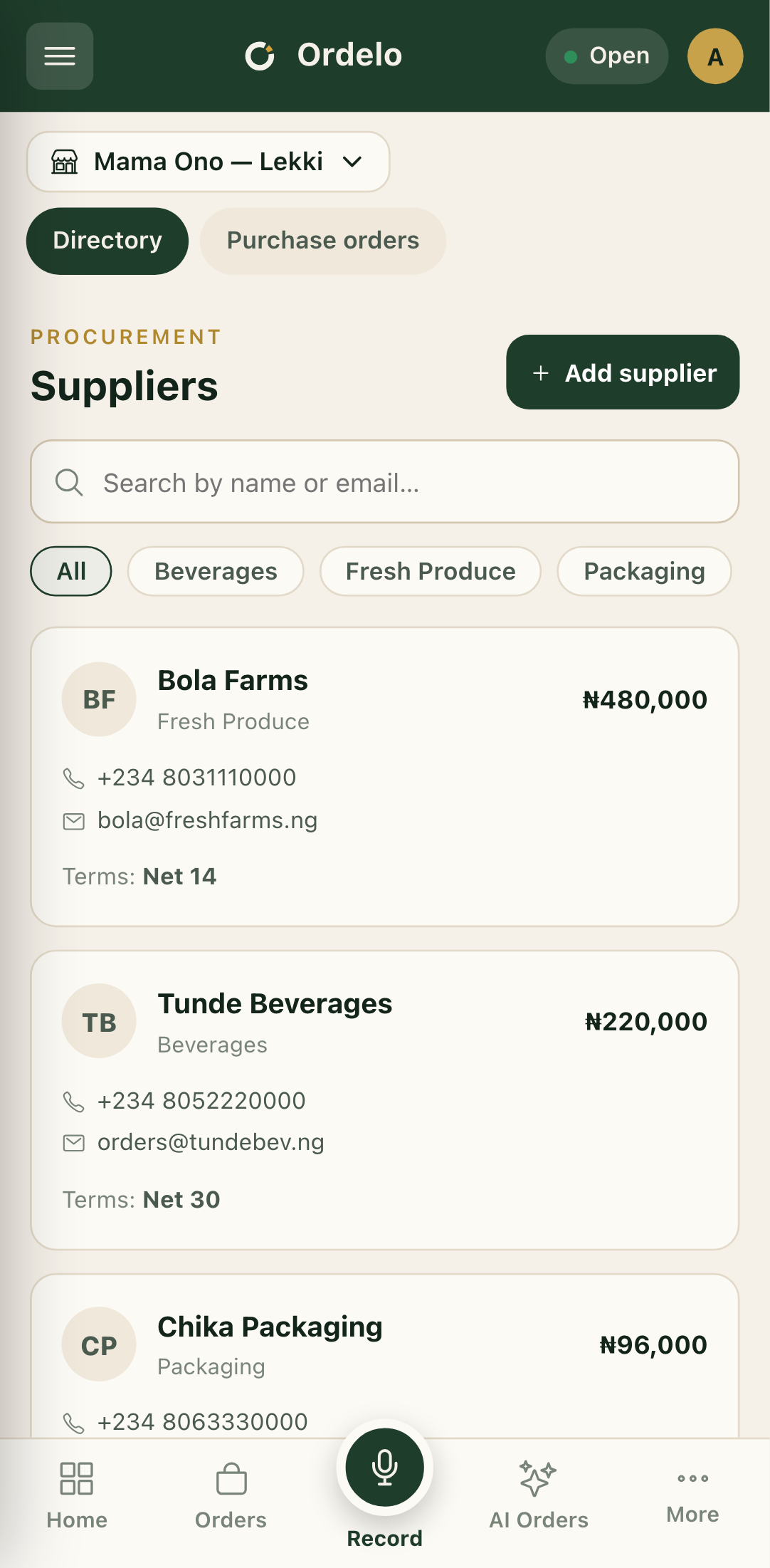 Supplier directory
Find a supplier
- Type in the Search by name or email… box to filter the list.
- If you've given suppliers categories, tap a chip along the top to show just that group. All clears the filter.
- Each supplier card shows their name, category, total spend (once you've ordered), phone, email, and payment terms. When there are many suppliers, use the Page controls at the bottom.
Build a supplier's catalog
The catalog is the list of products you can order from that supplier, each with the price you pay.
- Tap a supplier card to open their Catalog.
- Tap Add products in the top right.
- In the popup, search your store products in the Search store products… box.
- Tap the check button next to each product you want to add.
- For each product you pick, set its Unit cost (what this supplier charges you).
- Tap Add products to save them to the catalog.
Tips
- The catalog drives purchase orders. You can only order products that are in a supplier's catalog, so add them here before you try to create a purchase order.
- Unit cost is per supplier. The same product can have a different unit cost with each supplier. Set it on the one who's selling it to you.
- Total spend fills in over time. It's blank until you've placed and recorded orders with that supplier.
- Only a name, email, and phone are required. Category, terms, and address are optional and you can leave them for later.