Purchase orders
A purchase order is how you order stock from a supplier and track it until it arrives. This screen lists your orders and lets you create new ones.
Where to find it: open Suppliers → Purchase orders, or go to
/suppliers/orders.
Plan
This is a paid feature. Check that your current plan includes it before you rely on it. Open Plans and subscription to compare plans and upgrade.
Before you start
- Add the supplier and build their catalog first. You order from a supplier's catalog, so it can't be empty. See Supplier directory.
- Know when you need the stock. You set an expected delivery date on every order.
Read the list
- Use Search by PO no. or supplier… to find a specific order.
- Filter with the chips: All, Draft, Sent, Received, and Cancelled.
- Each row shows the PO number, the supplier, how many items and the ETA, the total amount, and two badges: the order status and the payment status (Paid, Unpaid, or Credit).
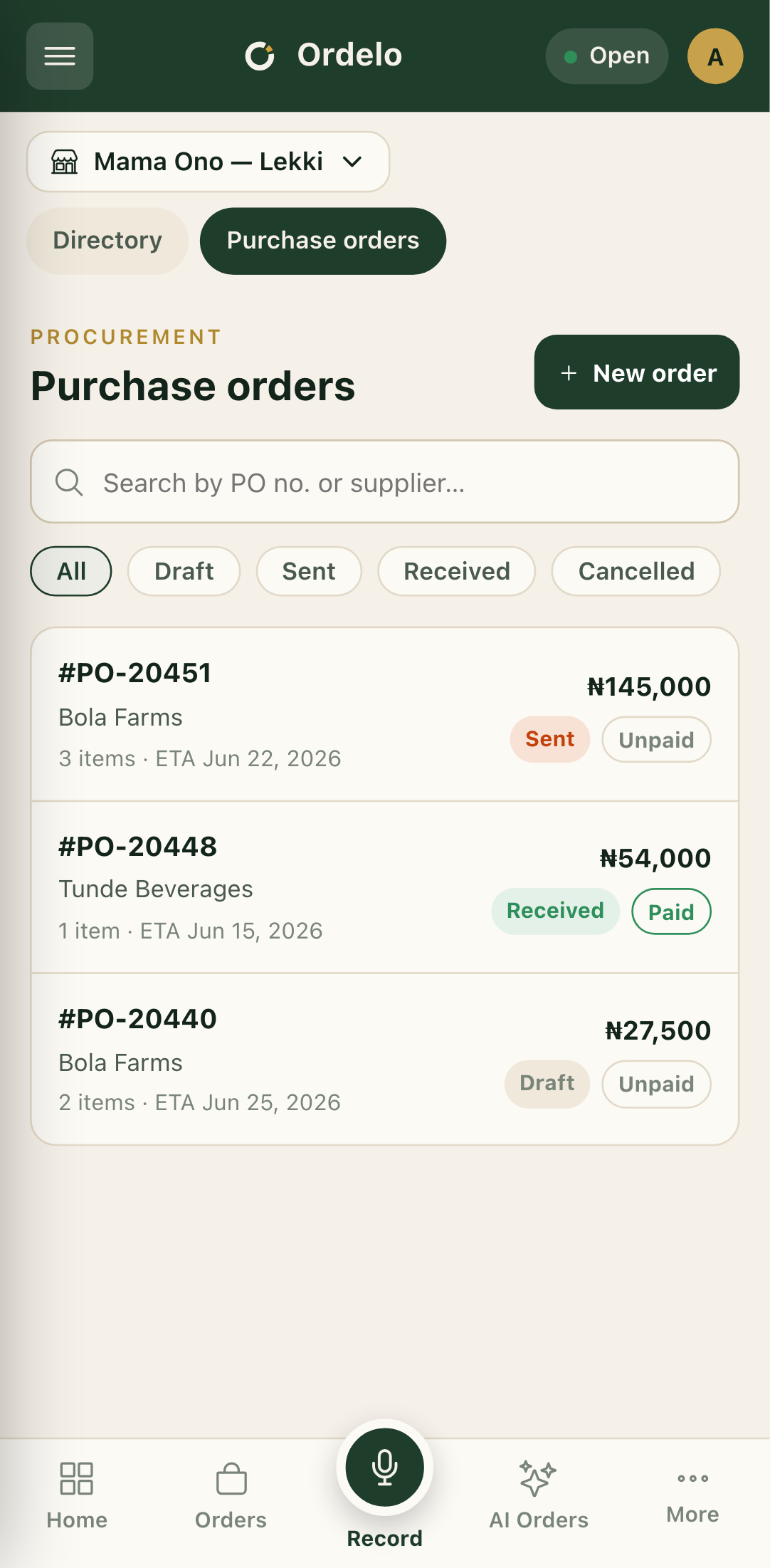 Purchase orders
Create a purchase order
- Tap New order in the top right.
- Choose a Supplier. Picking one loads that supplier's catalog into the product menus below.
- Set the Payment status: Paid, Unpaid, or Credit.
- Set the Expected delivery date.
- Add a Notes line if the supplier needs to know something (optional).
- Under Items, pick a Product from the catalog. Its Unit cost fills in from the catalog, and you can change it.
- Set the Qty. The line Total updates as you go.
- Tap Add item for each extra product. Use the trash icon to remove a line.
- Check the Order total at the bottom, then tap Create purchase order. It opens on the new order's page.
Track and update an order
Tap any order in the list to open its detail page.
- At the top you'll see the status badge, the payment badge, the supplier, the expected delivery date, and when it was created.
- The Items card lists each product with quantity, unit cost, and line amount, plus the Order total.
- The Supplier card shows the contact phone, email, and address on file.
- Activity is a timeline of what happened to the order and who did it.
To move an order along, tap the status button that appears near the top. What's offered depends on where the order is now:
- A Draft can be marked Sent or Cancelled.
- A Sent order can be marked Received (the stock arrived) or Cancelled.
Use the download icon in the header to save a copy of the purchase order.
Tips
- Pick the supplier first. The product menus stay empty until you choose one, because they list only that supplier's catalog. Switching supplier clears any products you'd already picked.
- Unit cost is a starting point. It prefills from the catalog, but you can edit it on the order if this batch costs more or less.
- Payment status is separate from delivery status. One badge tracks whether you've paid, the other tracks where the stock is. An order can be Paid but still Sent, or Received but Unpaid.
- The status buttons only offer valid next steps. If a button isn't there, that move isn't allowed from the order's current state.