Recipes and costing
A recipe records how you make one menu item from its ingredients. Once it's built, Ordelo works out what the dish costs to make and the margin you keep on it.
Where to find it: open Nav → Recipes, or go to
/recipes.
Plan
This is a paid feature. Check that your current plan includes it before you rely on it. Open Plans and subscription to compare plans and upgrade.
Before you start
- Add your products first. A recipe needs one output product (the finished dish) and its ingredients, and both come from your product list. See Add and edit products.
- To see cost and margin, your ingredients need a cost price and a selling price on the finished product. Without those, the recipe still saves, but no margin shows.
Steps
- Open Nav → Recipes. The screen lists your recipes with three counts at the top: Recipes, Active, and Ingredients.
- Tap New recipe.
- Type a Recipe name, for example "House jollof".
- Choose the Output product. This is the finished item the recipe makes.
- Set the Output quantity. This is how many units one batch of the recipe produces.
- Add prep notes under Notes if you want. This is optional.
- Under Ingredients, pick an Ingredient, enter the Qty, and choose a Unit. Tap Add ingredient to add another line. Each ingredient can only be used once per recipe.
- Tap Create recipe. You're taken back to the list.
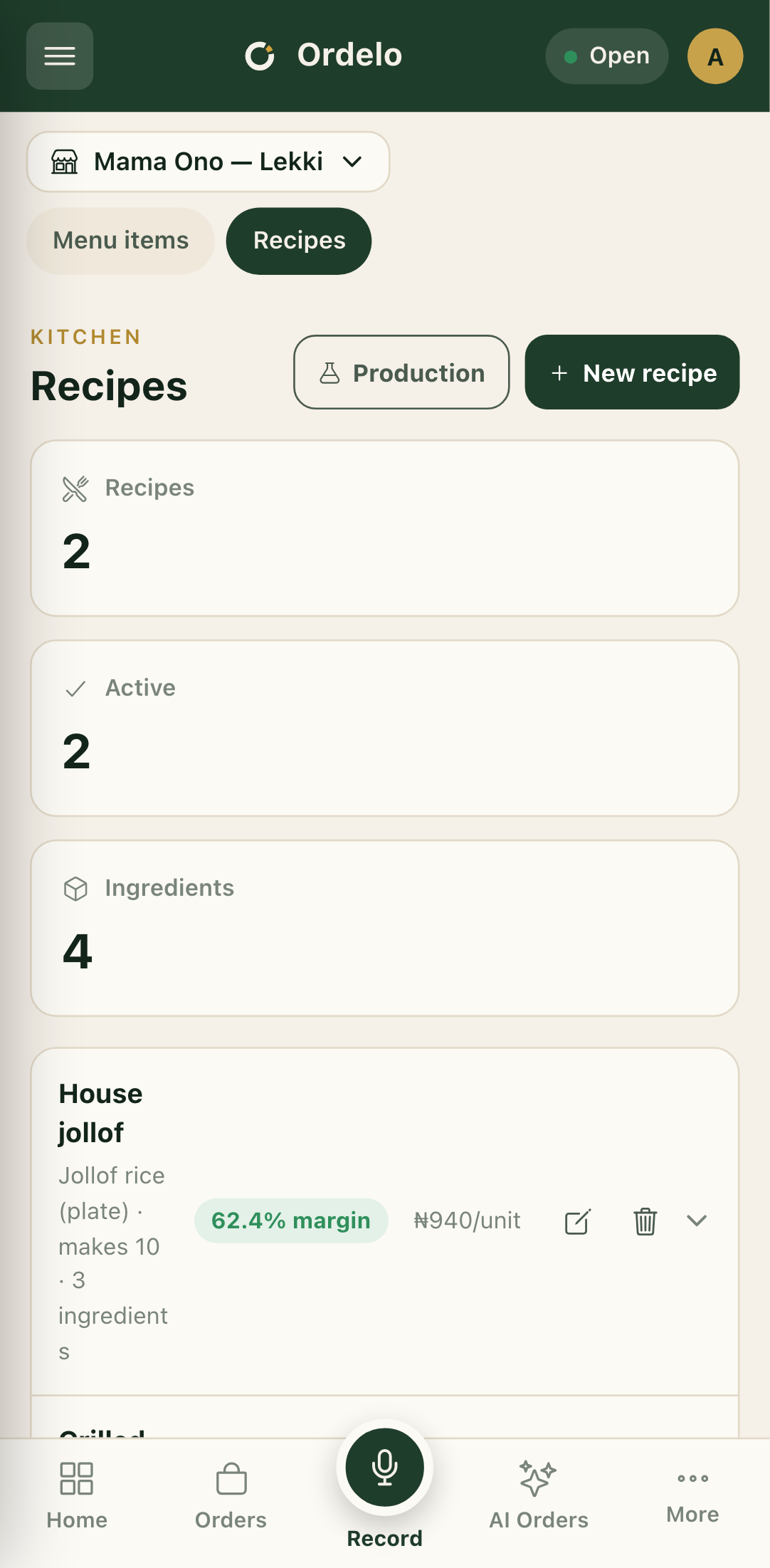 Recipe list
See the cost of a dish
- Back on the Recipes list, tap a recipe row to expand it.
- Read the cost summary: Ingredient cost, Cost / unit, Selling price, and Gross profit.
- Below that, each ingredient shows its quantity, a bar for its share of the cost, and its cost. This tells you which ingredient drives the price.
- On the right of each row, the margin is colour-coded: green from 50% and up, amber from 30%, red below that.
Tips
- No margin showing? The cost figures come from your ingredient cost prices and the finished product's selling price. If any are missing, the row shows the ingredient list without the cost summary.
- The output product is locked when editing. You can change the name, quantity, notes, and ingredients of an existing recipe, but not which product it makes. To change that, create a new recipe.
- Watch the red margins. A red margin means the dish costs too much to make for what you charge. Either raise the price or trim the recipe.
- Ready to make stock? From an expanded recipe, tap Run batch to jump straight into production with that recipe selected. See Run production.