A tour of your home dashboard
Home is the first screen you see after signing in. It gives you the top-line numbers for the store you're viewing, plus a setup checklist while you're still getting going.
Where to find it: open Home, or go to
/home.
Before you start
- Home shows figures for the store selected at the top of the app. Switch stores from the store name in the app bar to see another store's numbers.
- New store with no sales yet? Panels that have no data show Not available. That's expected until orders start coming in.
Read the screen
- Pick a time window. The buttons at the top right switch the view between Week, Month, and Year. The eyebrow above the title updates to match, for example "This week at a glance".
- Scan the KPI cards. The row of cards gives your headline numbers for the chosen window.
- Check the Sales panel. The Sales card charts your takings over the period.
- See where orders come from. The By channel panel breaks your orders down by sales channel.
- Pull to refresh. On a phone, pull the screen down to reload the latest figures.
 Home dashboard
The getting-started checklist
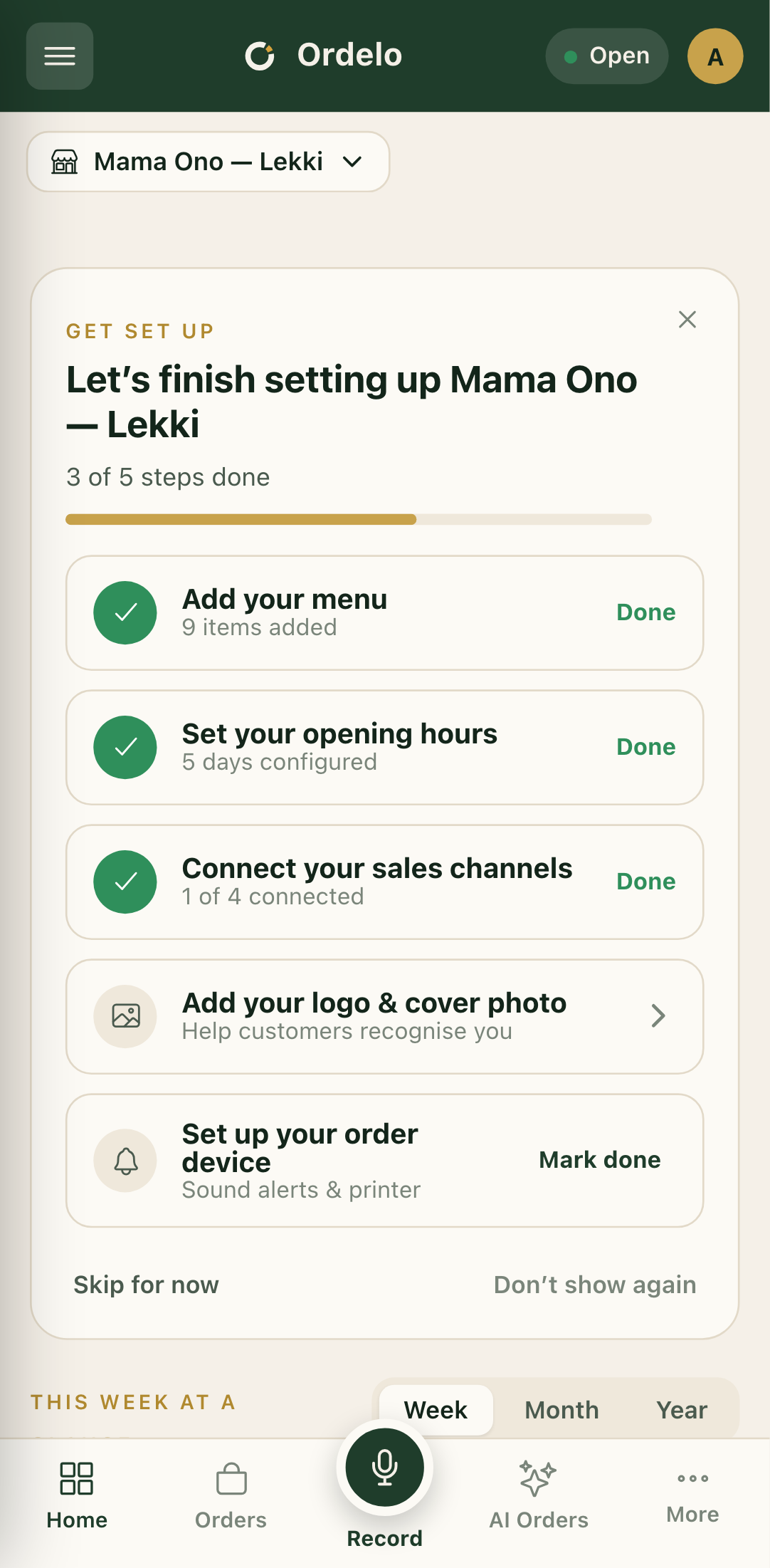
While your store is still being set up, a Get set up card sits at the top of Home. It tracks your progress and links straight to each task.
- It shows how many steps are done, with a progress bar, and a title like "Let's finish setting up your store".
- The steps are: Add your menu, Set your opening hours, Connect your sales channels, Add your logo & cover photo, and Set up your order device.
- Tap a step to jump to where you finish it. Connect your sales channels is highlighted as the key one.
- Most steps tick themselves once the app sees them done. Set up your order device has a Mark done link you tap yourself.
- Not ready for it? Skip for now hides the card until your next launch. Don't show again (or the X in the corner) hides it for good on this store.
- Once every step is done, the card disappears on its own.
Tips
- The checklist is per store. Each store you run has its own setup progress, so a new location starts its checklist fresh.
- Completed steps stay ticked offline. Once a step is done it's remembered, so it stays checked even without a connection.
- "Not available" isn't an error. It just means there's no data yet for that panel and window. It fills in as you trade.