Create your account
The sign-up wizard is how a new merchant registers for Ordelo. You enter your details, confirm your email with a code, tell us about your business, and set a password. Your application is then reviewed before your account goes live.
Where to find it: go to
/onboarding. From the sign-in landing page, tap Create account.
Before you start
- Have a working email address. A verification code is sent there, so you'll need to open it during sign-up.
- You must be at least 18. The date-of-birth field won't accept a younger date.
- Know your business name and business type. If your business is registered (for example with the CAC), have your legal name, registration type, and registration number handy.
Steps
- On the Access Ordelo screen, tap Create account to start onboarding.
- On Your details, enter your First name, Last name, Email, Country, Phone, and Date of birth. Add a Referral code if you have one (it's optional). Tap Continue. A 6-digit code is sent to your email.
- On Verify your email, type the 6-digit code we sent you and tap Verify. If it didn't arrive, tap Resend code.
- On Your business, enter your Business name (the app checks it isn't already taken) and pick a Business type. If the type is a registered business, also fill in the Legal business name, Reg. type, and Registration number. Tap Continue.
- If your setup asks for a few more details, fill in that short form and tap Continue. Most merchants skip straight past this.
- On Create a password, set a password with at least 8 characters, including upper and lower case, a number, and a symbol. Confirm it, then tap Submit application.
- You'll see Application submitted. Your profile is now under review.
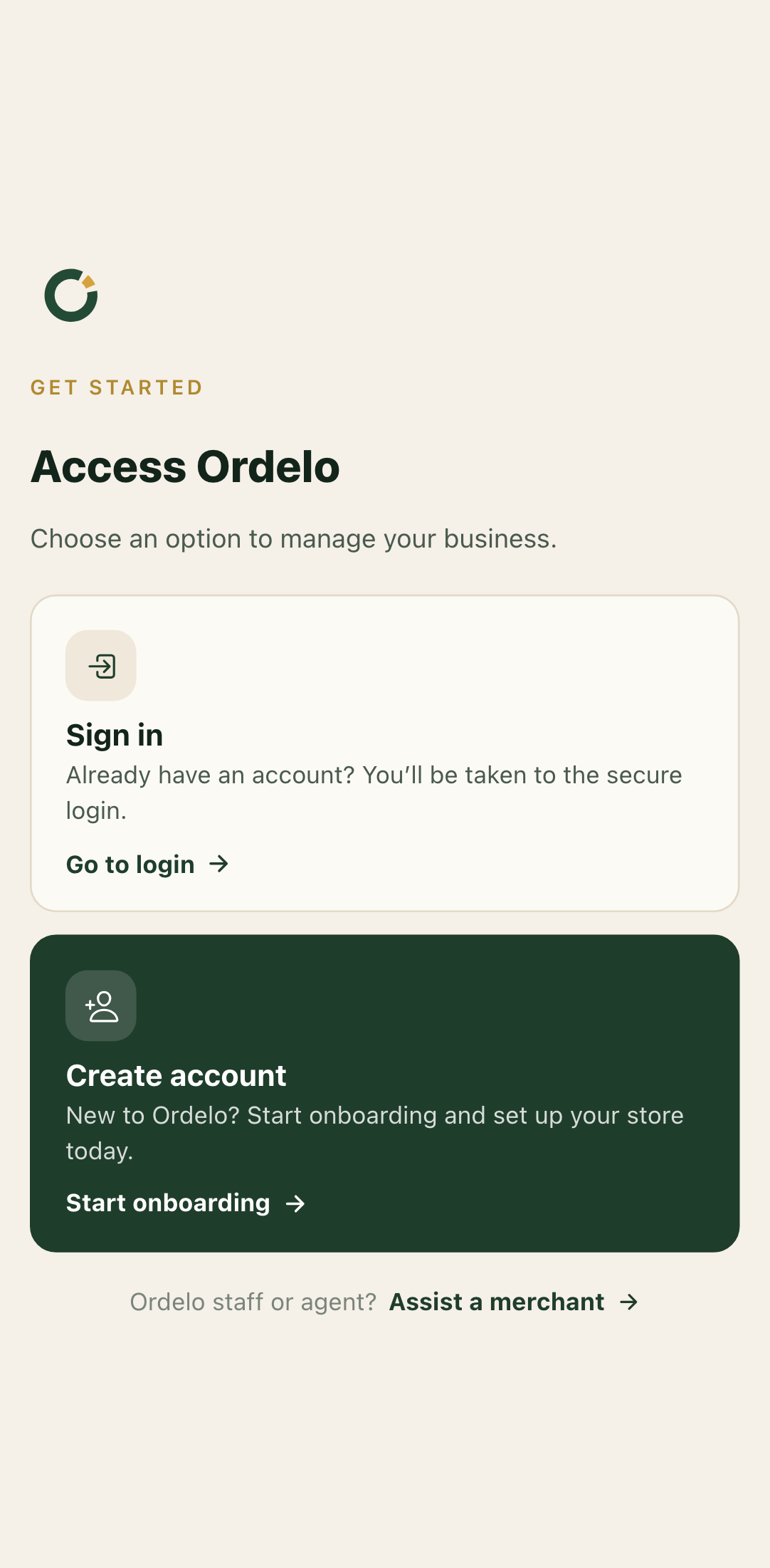 The sign-up wizard
Tips
- Your account isn't live the moment you submit. Applications are reviewed first, which usually takes 24 to 48 hours. You'll get an email once it's approved. In the meantime you can go to the dashboard in view-only mode.
- Already have an account? If your email is already registered, the wizard stops and offers to send you to sign in. Use Sign in rather than creating a duplicate.
- You don't choose a service type. Ordelo picks it for you, so there's no menu of app types to wade through.
- Keep your Submission ID. The confirmation screen shows a Submission ID. It's handy if you need to ask about your application.
- Being onboarded by an Ordelo agent? They can complete this on your behalf. You'll get a welcome email with a temporary password once approved, which you change on first sign-in.