Accept a team invite
When an admin adds you to their Ordelo team, you get an invite email with a link. That link brings you here to finish setting up your own account. This page is for the invited teammate, not the admin sending the invite.
Where to find it: open the link in your invite email. It goes to
/invite/followed by your one-time reference.
Before you start
- Open the invite email itself. The link carries a one-time reference, so start from the email rather than typing the address by hand.
- Have the 6-digit code from that email ready. You enter it on the form to confirm it's you.
- Choose a password with at least 8 characters, including upper and lower case, a number, and a symbol.
Steps
- Tap the link in your invite email. It opens the Set up your account screen.
- Enter your First name and Last name.
- Enter your Phone.
- Set your Date of birth (you must be at least 18) and pick your Gender.
- Type the 6-digit Verification code from your invite email.
- Set a Password, then repeat it in Confirm password.
- Tap Create account.
- When you see Account ready, tap Go to sign in and sign in with your email and new password.
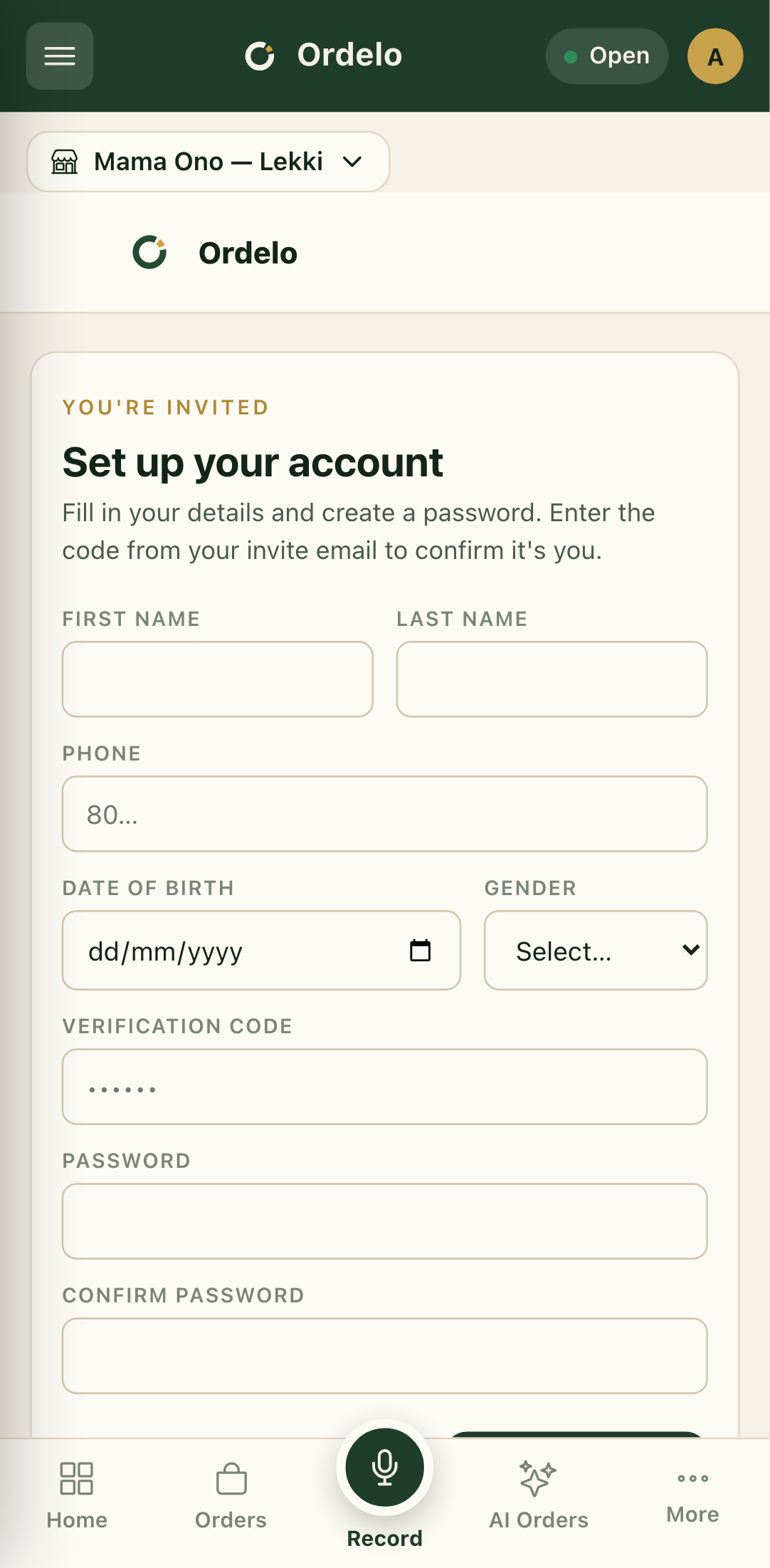 Invite setup screen
Tips
- "Invalid invite link" means the link is missing its reference or was already used. Ask your admin to resend the invite.
- Use the freshest email. If you were re-invited, open the most recent email so the code and link match.
- The code and password must both be right. If setup fails, double-check the 6-digit code and that your password meets every rule, then try again.
- You sign in separately. Setting up your account doesn't sign you in automatically. Finish here, then sign in with your email and new password.