The kitchen display (KDS)
The kitchen display shows live tickets for orders in progress. Cooks work each item, mark it ready, then bump the whole ticket off the screen when it's done. It updates on its own as new orders come in.
Where to find it: open Nav → Dine-in → Kitchen, or go to
/kds.
Plan
This is a paid feature. Check that your current plan includes it before you rely on it. Open Plans and subscription to compare plans and upgrade.
Before you start
- Orders reach the kitchen once they're placed. Ring them up on the POS or accept them from the orders board.
- Best on a screen that stays on in the kitchen. The board refreshes live, so leave it open.
Steps
- Open Nav → Dine-in → Kitchen. Each order shows as a ticket. Tickets sort with the longest-waiting one first.
- Use the filter row to narrow by service type: All, Dine-in, Pickup, or Delivery. The All chip shows the current ticket count.
- Read a ticket. The top shows the service badge, the table or customer name, the order number, and a timer counting the minutes since the order came in. The timer turns amber, then red, the longer it waits.
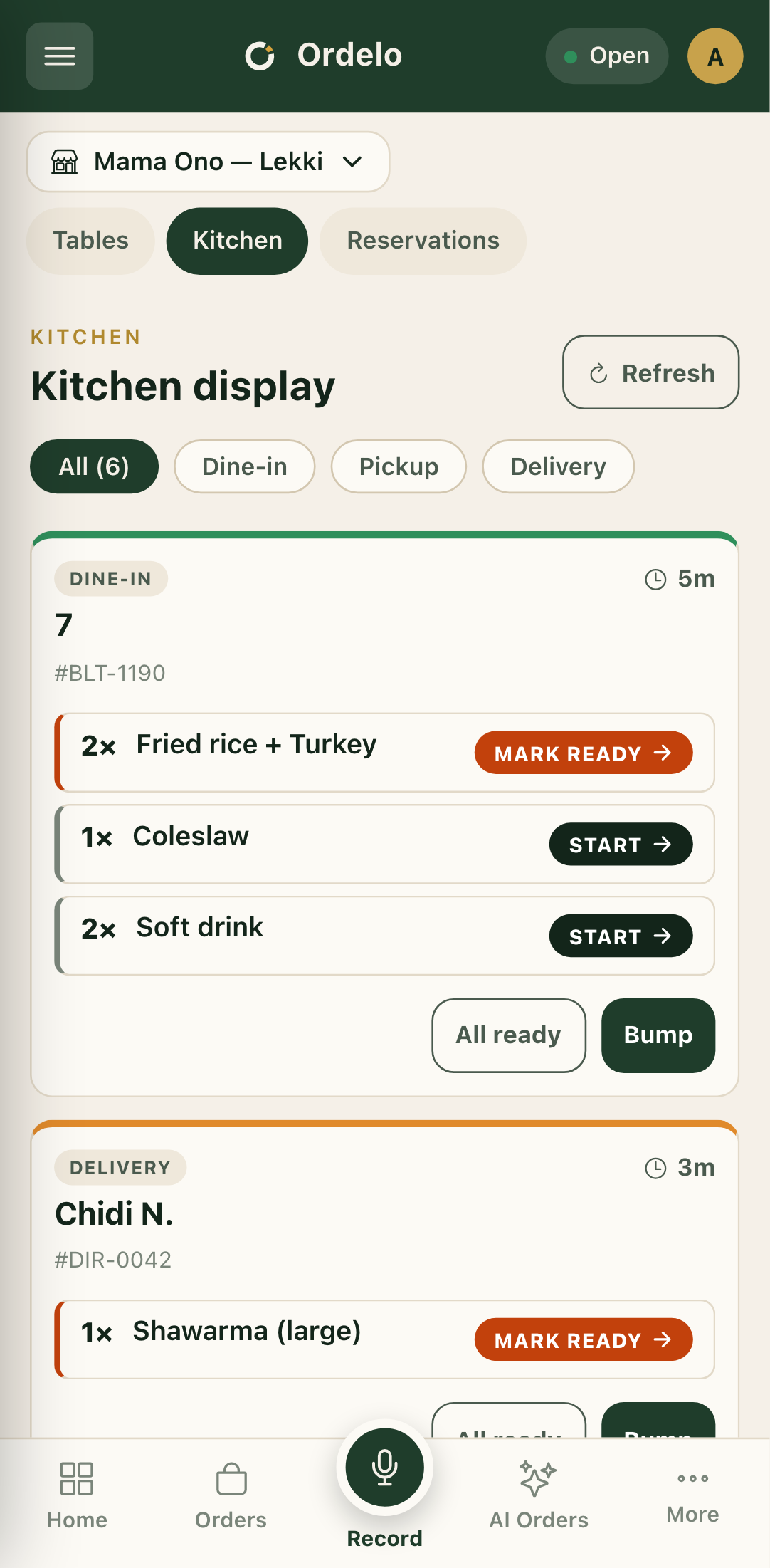 Kitchen display
- Start an item by tapping it. A waiting item reads Start. Tap it to move it to preparing.
- Tap the item again when it's done. A preparing item reads Mark ready. Once ready, it shows a check and can't be tapped further.
- Need to clear a whole ticket at once? Tap All ready to mark every item ready.
- When the order is finished, tap Bump to clear the ticket off the board.
- Tap Refresh in the top corner if you want to pull the latest tickets by hand.
Tips
- Tap an item to advance it one step. Waiting goes to preparing (Start), preparing goes to ready (Mark ready). Each tap moves it forward one stage.
- The timer is your priority cue. Amber and red mean a ticket has been waiting a while. The longest-waiting ticket always sits first.
- "Bump" clears the ticket, "All ready" just marks items. Once every item is ready the ticket shows a single Bump button to send it off.
- Modifiers and notes show under each item. Options the customer picked and any kitchen notes appear beneath the item name, so read them before you start.
- The board is shared. Changes made here show up for the floor staff and on the order in real time.