Manage tables
Lay out your floor into areas and tables, then track which ones are free and which are taken. This is the base for dine-in orders and reservations.
Where to find it: open Nav → Dine-in → Tables, or go to
/tables.
Plan
This is a paid feature. Check that your current plan includes it before you rely on it. Open Plans and subscription to compare plans and upgrade.
Before you start
- Add at least one area before you add tables. Every table belongs to an area, and the table form needs one to save.
- An area is a part of your floor, like "Terrace" or "Main hall". Tables live inside areas.
Steps
- Open Nav → Dine-in → Tables. The top row shows four figures: Tables (your total), Available, Occupied, and Occupancy as a percentage.
- Tap Add area to create a section of your floor. Give it an Area name, for example "Terrace", leave Active ticked, and tap Create area.
- Tap Add table. Fill in the Table name (for example "T1"), the Capacity (how many seats), the Area it sits in, and a Shape (Square, Round, or Rectangular). Leave Active ticked, then tap Add table.
- Use the All areas row to filter the grid to one area. When an area is selected, Edit area and Delete area appear so you can rename or remove it.
- Use the status row (All status, Available, Occupied, Reserved, Cleaning, Bill requested) to show only tables in one state.
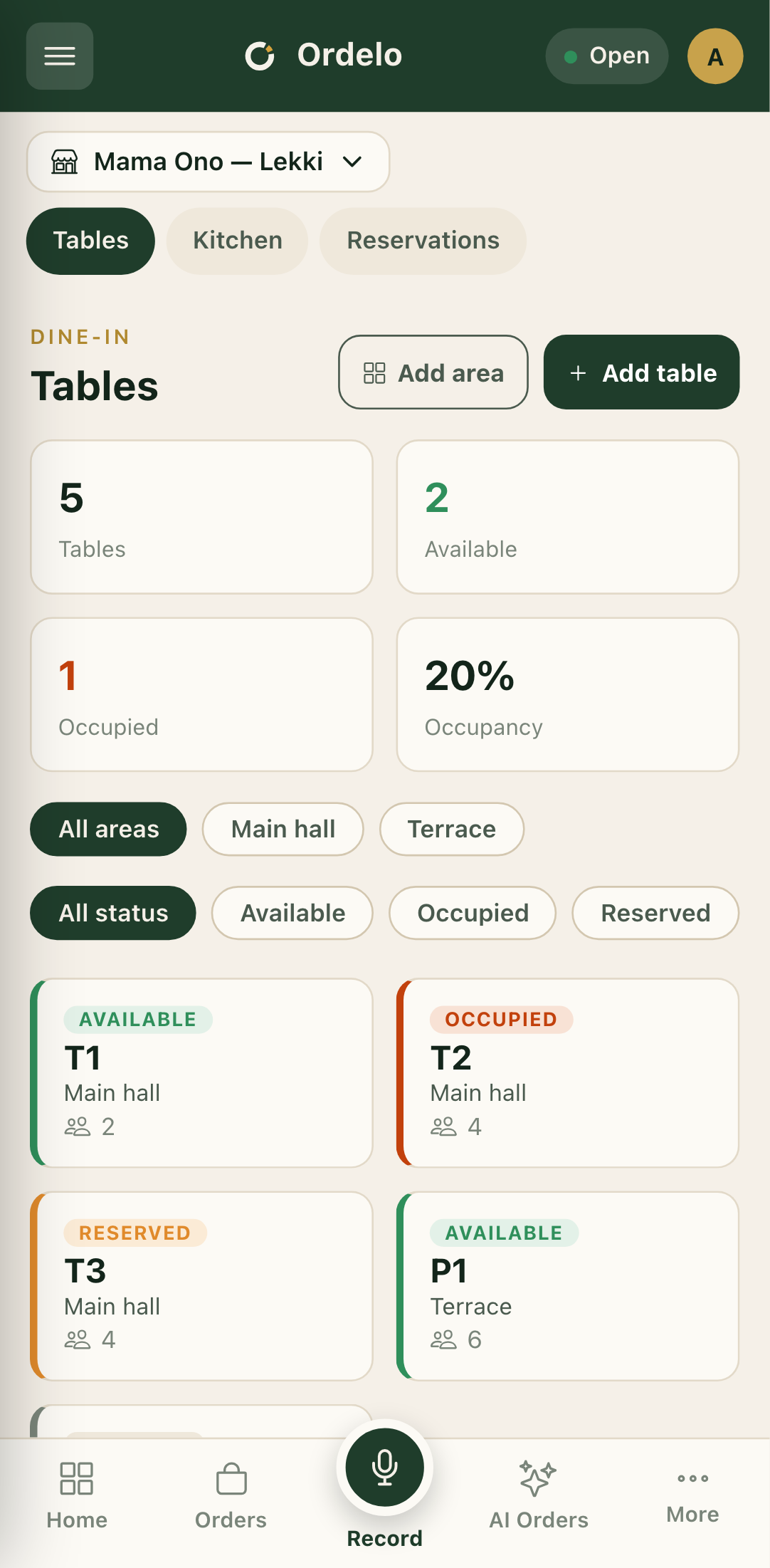 Tables view
- Tap any table card to open its actions. Under Set status you can mark it Available, Occupied, Reserved, Cleaning, Bill requested, or Out of service.
- From the same panel, tap Add items to start a dine-in order for that table, Edit to change its details, or Remove to delete it.
Tips
- Areas come first. If Add table has no area to choose, create an area with Add area first.
- Deleting an area needs it empty. Move or remove its tables before you delete the area, or the delete won't go through.
- "Add items" jumps to the POS. It opens a new order with the table already attached, set to dine-in, so you go straight to building the order.
- Occupancy is a quick read on the room. It's the share of your tables that are occupied right now, shown as a percentage at the top.
- Removing a table is permanent. Use Out of service instead if a table is only temporarily unusable.