App settings
Your preferences for this device: how the app looks, how new-order alerts sound, your connection status, connected channels, and which store is active.
Where to find it: open Settings in the main menu, or tap your name at the top right and choose Settings. You can also go to
/settings.
Before you start
- Settings like appearance and the alert sound are saved per device. Changing them on your phone doesn't change them on the tablet at the counter.
- You need to be signed in to see the Signed in as and store details.
The settings sections
Settings is one scrolling page. Work through the cards you need.
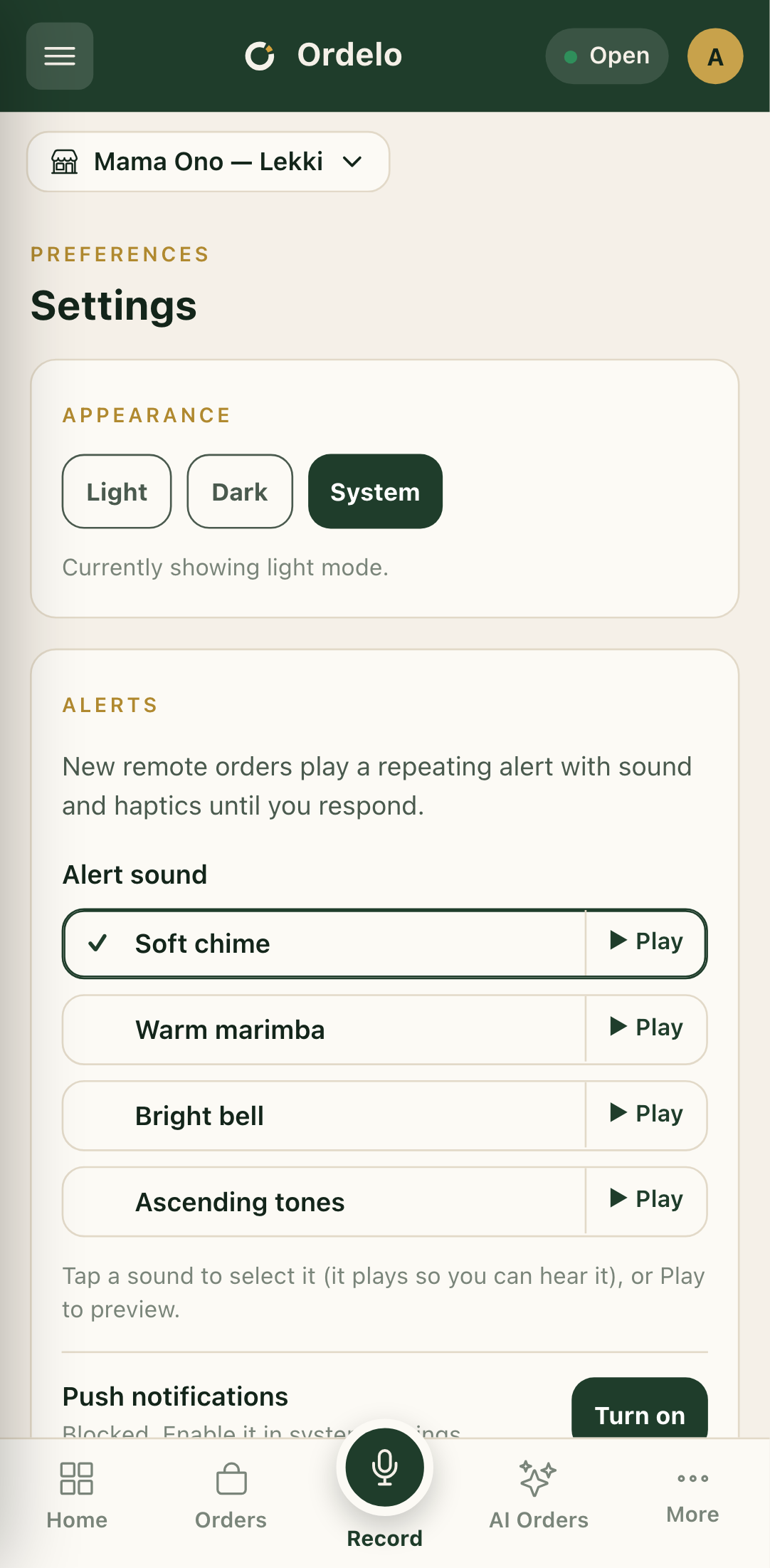 Settings
Appearance
- Under Appearance, tap Light, Dark, or System.
- The line below confirms what's showing now, for example "Currently showing dark mode."
- System follows your phone's own light or dark setting.
Alerts
- Under Alerts, pick an Alert sound for new remote orders. Tap a sound to select it (it plays so you can hear it), or tap Play to preview one without choosing it.
- Under Push notifications, tap Turn on to get alerted about new orders even when the app is closed. Tap Turn off to stop. This is set per device.
- For the full detail on alerts, see Notifications.
Connectivity
- Connectivity shows whether you're Online or Offline. Actions you take while offline are queued and sync when you reconnect.
- Simulate offline is a testing tool. Leave it alone unless you're deliberately checking how the app behaves with no connection. Tap Stop simulating offline to return to normal.
Connected channels
- Connected channels lists your ordering channels and whether each is Connected or Not connected.
- Tap Manage channels to add or fix a channel.
Device and store
This card shows Signed in as, your Active store, the Paired device (this device), and the App version.
- Tap View profile to open your profile.
- Tap Sign out to log out of this device.
Tips
- Settings are per device. The alert sound and appearance you set here apply to this phone or tablet only. Set them on each device you use.
- Blocked push? If notifications say they're blocked, the toggle can't fix it. Turn them back on in your phone's own system settings for the app.
- Wrong store showing? The Active store here reflects your current store. Switch stores from the store name at the top of the app, not from this card.
- Note the app version. If you report a problem, the App version on this card helps support pin down the build you're on.