Invite your team
The Team page is where you add the people who work with you and send them an invite to join your business. It's for business owners and admins.
Where to find it: open Nav → Team, or go to
/team. Only admins can see it.
Before you start
- You need to be an admin. If the Team item isn't in your menu, your account doesn't have access.
- Have the person's details ready: first name, surname, email, and phone number.
- If you want to give them a specific job role (like Manager or Cashier), set up your roles first. See Roles and permissions.
Read the screen
At the top are filter chips with counts: All, Active, Pending, and Inactive. Tap one to narrow the list. Below that is a Search by name or email… box.
Each teammate in the list shows their initials, name, and email, with a status label on the right. An admin has a small shield next to their name. On the right of each row are two buttons: a key icon to Manage roles, and, for anyone still pending, a refresh icon to resend their invite.
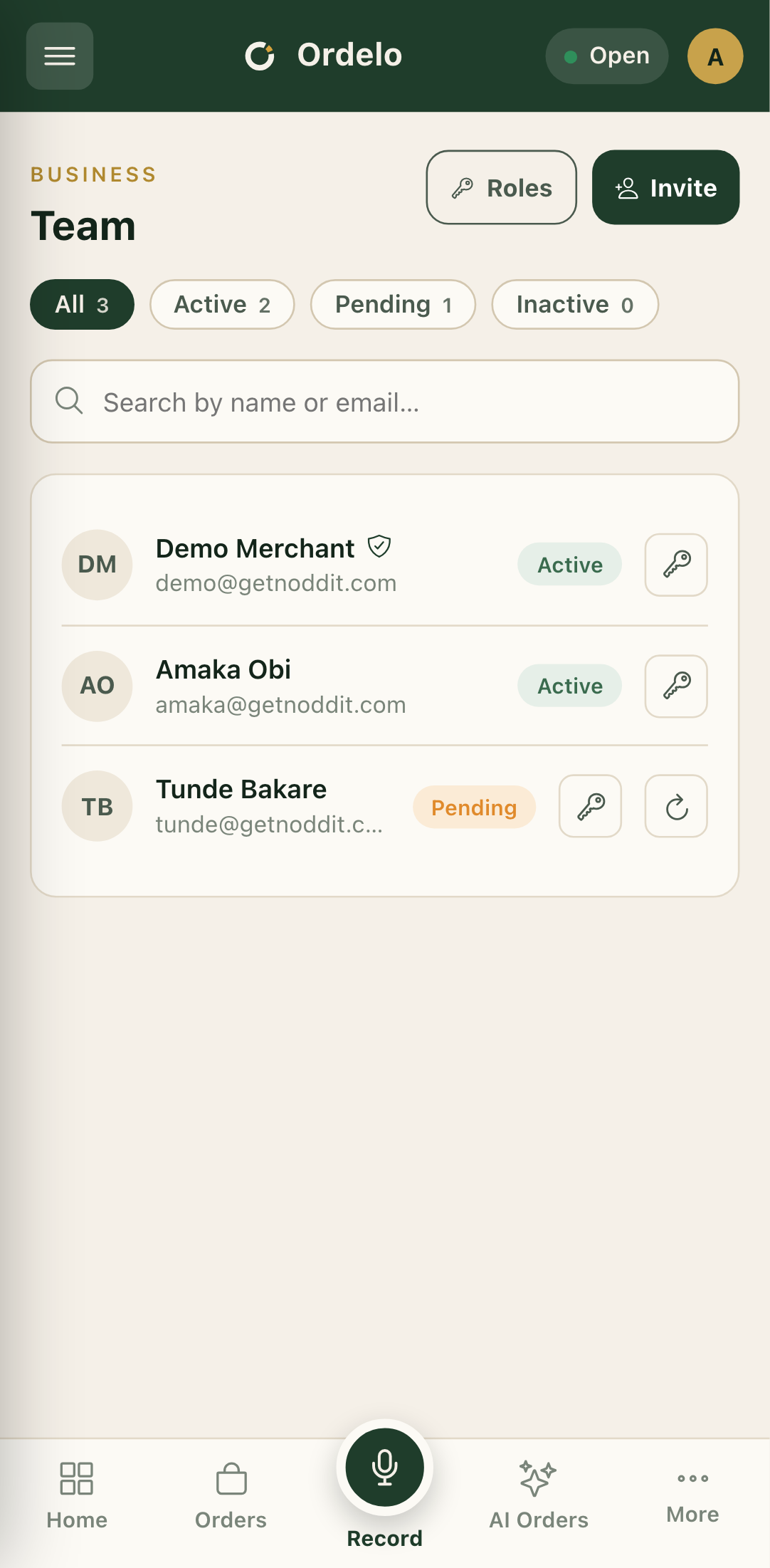 Team management
Invite a teammate
- Tap Invite in the top right. The Invite teammate form opens.
- Enter their First name and Surname.
- Enter their Email. This is where the invite is sent.
- Enter their Phone number.
- Choose a User type from the list.
- To give them full access, tick Make this teammate an admin. This grants admin rights to manage the team, settings, and billing. Leave it off for regular staff.
- If you've set up roles, tick the Roles you want them to have.
- Tap Send invite. They'll get an email invite to activate their account, and they appear in your list as Pending until they do.
Manage a teammate's roles
- Tap the key icon on a teammate's row. The Manage roles panel opens.
- Assigned roles shows what they have now. Tap the × on a role to remove it.
- Under Assign a role, pick a role from the list and tap Assign.
- If the list is empty, you've assigned every role, or you haven't created any yet. Create them under Roles and permissions.
Resend an invite
- Find a teammate whose status is still Pending.
- Tap the refresh icon on their row.
- The invite email is sent again to the same address.
Tips
- Pending means they haven't joined yet. The invite has gone out but they haven't activated their account. Use the refresh icon to send it again.
- Admin is all-or-nothing. Ticking Make this teammate an admin gives full access, including team, settings, and billing. For limited access, leave it off and assign roles instead.
- Roles only appear if you've made them. The roles checkboxes and the assign list are empty until you create roles first.
- Check the email carefully. The invite goes to the address you type, so a typo means it never arrives.